Website Launch Checklist: What to Check Before You Go Live in 2026
Everything to check before and after a website goes live: copy, forms, mobile layouts, Core Web Vitals, contrast, noindex, sitemaps, redirects, domain and analytics.
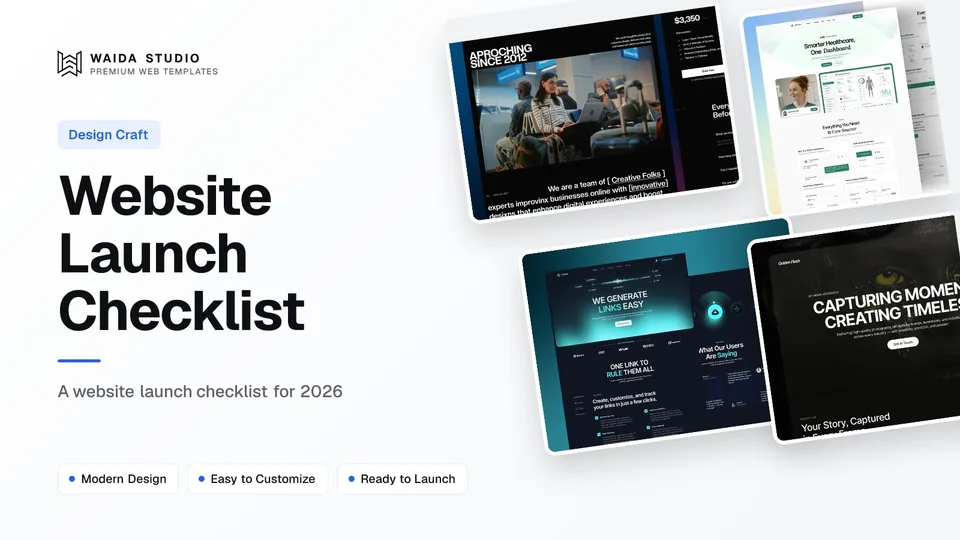
A website launch checklist covers six areas: content, functionality, mobile and speed, accessibility, SEO and the domain. Before going live, proofread every page, submit every form, test on a real phone, remove any noindex rule, set redirects for old URLs and connect the domain over HTTPS. After launch, submit a sitemap and watch Search Console.
This guide turns those areas into checks you can tick off, with the thresholds and settings that matter, where to find them in Framer and Webflow, and what to watch in the first week. It works whether you built from scratch, from a template or with an agency.
The Website Launch Checklist at a Glance
Run the checks in the order below: content first, because every later test depends on the final pages, and the domain last, because it is the step that makes the site public. Each row says what to check and what counts as done.
Area | What to check | Done when |
|---|---|---|
Content | Copy, names, prices, dates, legal pages | Every page read aloud once, no placeholder text left |
Functionality | Forms, buttons, navigation, 404 page | Each form delivered a real test submission |
Mobile and speed | Layouts at phone and tablet widths, Core Web Vitals | No horizontal scroll, LCP under 2.5 s in a lab test |
Accessibility | Contrast, alt text, headings, keyboard use | Body text at 4.5:1 or better, every image described |
SEO | Titles, descriptions, noindex, sitemap, redirects | No noindex on live pages, old URLs return 301 |
Domain and tracking | DNS, HTTPS, analytics, Search Console | Site loads on https:// with and without www |
Content and Copy Checks
Read every page in full before launch, on the device your visitors use most. Most launch-day embarrassments are content mistakes: a template's sample text left in a footer, last year's price, a wrong phone number or a link to a page that no longer exists.
- Search the whole site for placeholder text such as Latin filler paragraphs, "Your Company" and sample email addresses.
- Check names, prices, opening hours, addresses and phone numbers against one source of truth.
- Make sure every page has one H1 that says what the page is about.
- Replace stock testimonials and logos with real ones, or remove the section.
- Add a privacy policy, plus terms if you sell anything, and link both from the footer.
- Update the copyright year and any "coming soon" banners.
If you started from a template, also check the pages you did not plan to use. Unused sample pages are still published unless you delete or hide them, and they can end up in search results.
Forms, Links and Functionality
Submit every form on the live build and confirm the message arrives where your team works: an inbox, a sheet or a CRM. Then click every button and menu item, on desktop and on a phone. A broken contact form costs you leads silently, because nobody tells you it failed.
- Send a test submission through each form and check the confirmation message and the email it triggers.
- Check that spam protection is on and that the reply-to address is the visitor's, not your own.
- Click every navigation link, footer link and call to action.
- Visit a made-up URL and confirm the 404 page has a way back to the homepage.
- Test checkout or booking flows end to end with a real low-value transaction if the provider allows it.
- Open external links and confirm they go to the right page.
On Framer, our guide to Framer forms covers where submissions go and how to test webhooks before launch.
Mobile, Speed and Accessibility
Test on a real phone, not only a resized browser window, and measure speed against the three Core Web Vitals. Google's targets for a good experience are a Largest Contentful Paint of 2.5 seconds or less, an Interaction to Next Paint of 200 milliseconds or less and a Cumulative Layout Shift of 0.1 or less.
Those thresholds come from Google's Web Vitals overview on web.dev, which assesses them at the 75th percentile of page loads, split by mobile and desktop. A new site has no field data yet, so run a lab test before launch and check the field report a few weeks later.
- Check every page at phone, tablet and desktop widths, with no horizontal scrolling.
- Compress hero images and videos; the largest image above the fold is usually the LCP element.
- Give images and embeds fixed dimensions so the layout does not jump while loading.
- Make tap targets large enough to hit with a thumb, and keep text readable without zooming.
For accessibility, the minimum contrast in WCAG 2.2 success criterion 1.4.3 is 4.5:1 for normal text and 3:1 for large text, which it defines as 18 point, or 14 point bold. Also give every meaningful image alt text, keep headings in order and make sure the site works with a keyboard alone.
SEO Checks Before Going Live
The most important SEO check is to remove anything that blocks indexing. Staging sites are often set to noindex, and that setting sometimes survives launch. Then give each page a unique title and description, add social sharing tags and plan redirects for any URL that is changing.
Google's documentation on blocking indexing with noindex explains a common trap: a noindex rule only works if the page is not blocked in robots.txt, because a crawler that cannot fetch the page never sees the rule. So check both the page settings and the robots.txt file, and remove staging blocks from both.
- Write a unique title and meta description for every page; our Framer SEO guide shows where these live in Framer.
- Add the four required Open Graph properties (og:title, og:type, og:image and og:url) so links preview properly when shared.
- Add a square favicon; Google's favicon guidelines recommend larger than 48 by 48 pixels and require it to be crawlable.
- Generate an XML sitemap that uses full, absolute URLs.
- Add structured data where it fits, such as Organization or LocalBusiness on the homepage.
If you are replacing an old site, list every old URL that gets traffic or links and map it to its new home. Google's guide to redirects and Google Search recommends permanent server-side redirects (301 or 308) when a URL changes for good; temporary ones (302 or 307) keep the old URL in results.
Domain, HTTPS, Analytics and Search Console
Connect the domain last, once everything above passes. Point the DNS records your builder gives you at the registrar, wait for the SSL certificate to issue, and confirm the site loads on https:// with and without www, with one version redirecting to the other. Then install analytics and verify Search Console.
- Lower the DNS TTL a day before the switch if you are moving an existing domain, so changes spread faster.
- Check that http:// redirects to https:// and that there are no mixed-content warnings.
- Install your analytics tool and check it records your own visit in real time.
- Set up conversion events for form submissions and purchases before you send any traffic.
- Check that your email (MX) records still work if you changed DNS providers.
For Search Console, Google's help article on verifying site ownership says a Domain property is verified with a DNS TXT record at your domain provider, and that you should keep the record in place after verification. URL-prefix properties can also use an HTML file, a meta tag, Google Analytics or Google Tag Manager.
Launch Settings in Framer and Webflow
Both builders handle hosting, SSL and sitemaps for you, so most launch work is in site settings: the domain, page titles, redirects and the search-engine visibility toggle. The differences are mainly in which plan includes staging and redirects.
Launch task | Framer | Webflow |
|---|---|---|
Free preview address | Free Framer subdomain | webflow.io subdomain |
Custom domain | Included on paid site plans | Included on paid site plans |
Redirects | "Site redirects" listed on the Pro plan | 301 redirects listed as a site plan feature |
Staging | "Staging environment" listed on the Pro plan | Publish to webflow.io before the custom domain |
The plan details above come from the Framer pricing page and the Webflow pricing page, both checked in November 2026. Plans change, so confirm on those pages before you buy. For a full build walkthrough, see our Webflow tutorial or the Framer tutorial.
The First Week After Launch
Launch is the start of the checklist's second half. In the first week, submit your sitemap, request indexing for the homepage, watch for crawl errors and check that analytics and forms keep working with real visitors. Most problems show up in these few days.
Google's guide to building and submitting a sitemap lists the options: submit it in the Search Console Sitemaps report, or add a line such as "Sitemap: https://example.com/sitemap.xml" to robots.txt. A single sitemap holds up to 50,000 URLs or 50 MB uncompressed.
- Day 1: submit the sitemap and inspect the homepage URL in Search Console.
- Day 1: send one more test submission through every form on the live domain.
- Day 2–3: check the Search Console Pages report for pages that are excluded by noindex or redirect errors.
- Day 7: review analytics for pages with high exits and fix anything broken.
- Day 7: run a broken-link check across the whole site.
Starting From a Template Shortens the List
A good template removes several checks before you start: responsive layouts, heading structure, a 404 page and form layouts are already built and tested. Your launch list shrinks to content, settings and the domain. These two Waida Studio templates are free on every platform with a free Waida account, Figma file included.
Zelda

Zelda is a dark design agency template with 13 pages, free on Framer, Webflow, HTML, Next.js and Astro. It suits studios and consultants who want a finished site they only need to rewrite.
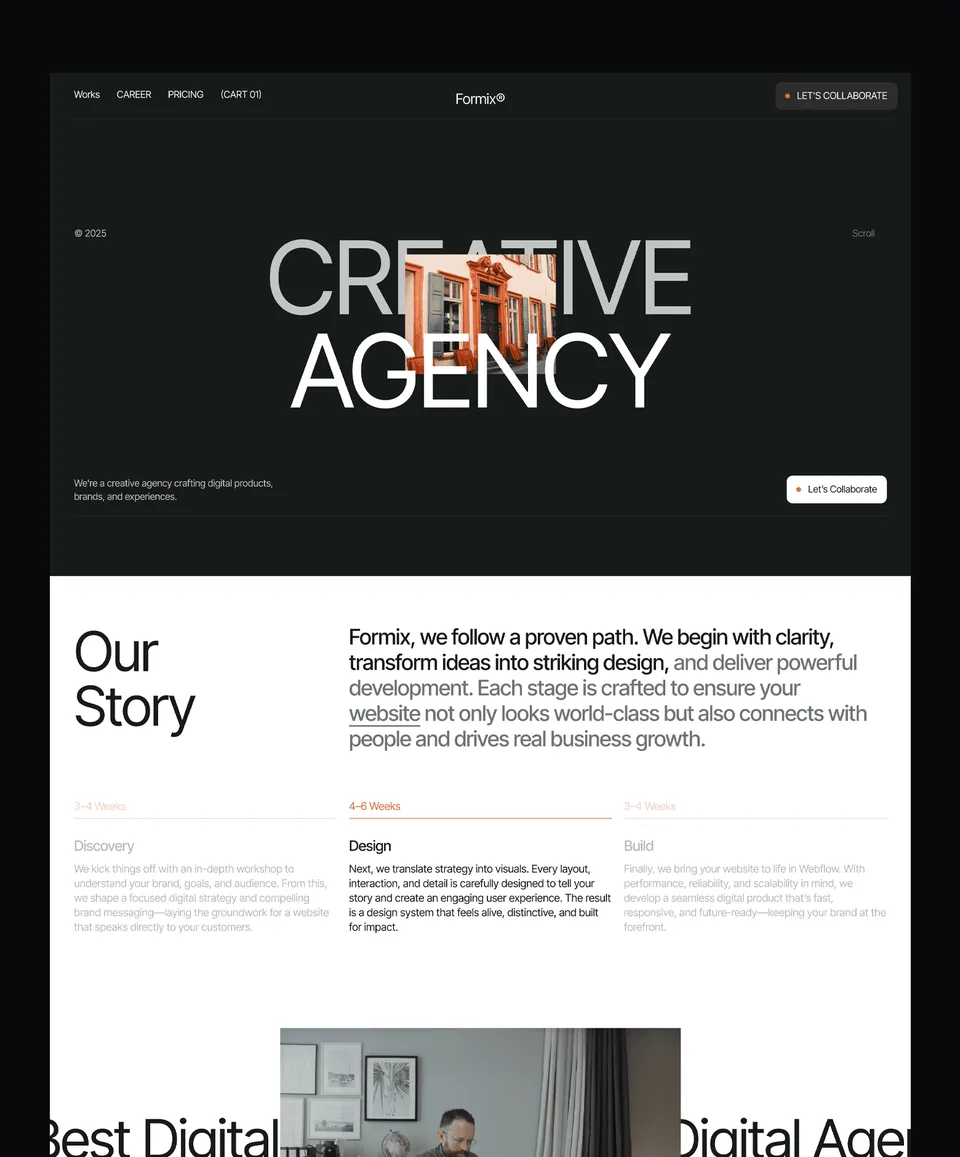
Medonix

Medonix is a medical SaaS startup template with 13 pages, also free on every platform. It fits health-tech products, clinics and software teams with a product to explain.
Every Waida template comes with a licence for one person and unlimited projects, including client work, as set out in our terms. If you would rather hand the launch to someone else, our customisation service starts at $499 for logo, copy and colour changes.
Templates to start from
All 46 templates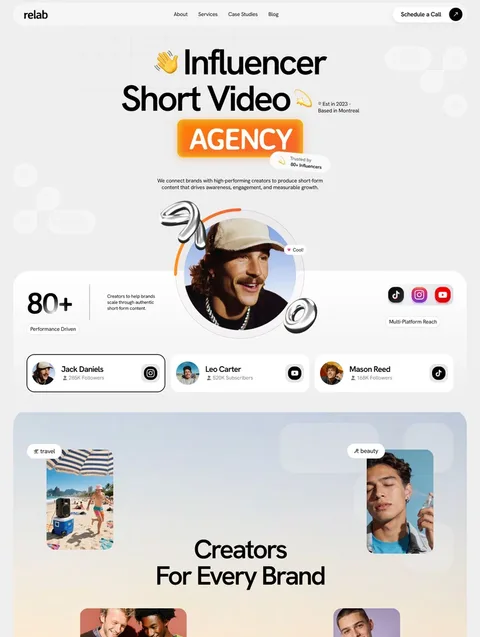



Frequently asked questions
What should be on a website launch checklist?
Content and legal pages, working forms and links, mobile layouts, Core Web Vitals, contrast and alt text, page titles and descriptions, no leftover noindex, redirects for old URLs, HTTPS on the domain, analytics and Search Console.
How long before launch should I start the checklist?
Start content and functionality checks about a week before launch, so there is time to fix what you find. Leave the domain switch for last, once everything else passes on the staging address.
Why is my new website not showing up on Google?
The usual causes are a noindex setting left over from staging, a robots.txt block or simply time. Check both settings, submit your sitemap in Search Console and request indexing for the homepage.
Do I need to submit a sitemap after launching?
It is not required, but it helps Google find your pages sooner. Submit it in the Search Console Sitemaps report or list it in robots.txt with a Sitemap line.
Should I use 301 or 302 redirects when relaunching a site?
Use 301 or 308 permanent redirects for URLs that are changing for good. Google treats them as a signal that the new URL should replace the old one in search results; temporary 302s keep the old URL.
What is a good page speed target at launch?
Aim for Google's good thresholds: Largest Contentful Paint of 2.5 seconds or less, Interaction to Next Paint of 200 milliseconds or less and Cumulative Layout Shift of 0.1 or less.
A website launch checklist is short when you work through it in order: content, functionality, mobile and speed, accessibility, SEO, then the domain. The checks that cause the most damage when missed are a leftover noindex rule, a form that delivers nowhere and old URLs without redirects, so do those three twice.
If you have not built the site yet, starting from a tested template removes much of the list. Browse our free website templates for Framer, Webflow, HTML, Next.js and Astro, or see plans and bundles on the pricing page: Pro is $12 a month billed yearly, and bundles are one-time payments, from $49 for every Figma file to $159 for every Framer or Webflow template.

More from Kazi
Related articles
More in Design Craft
Website Fonts: How to Choose and Pair Them in 2026
How to choose, pair, size, license and load website fonts, with the real pairings used in six live templates.

Website Wireframe Examples: How to Wireframe a Site in 2026
Six website wireframe examples you can copy block by block, with a seven-step method for drawing your own and a plain comparison of the tools.

Hero Section Design: What Works in 2026
A practical guide to hero section design: what the first screen must say, which layout to pick, and how to keep images, video and text fast and readable.