Framer Tutorial: How to Build Your First Site in 2026
A step-by-step Framer tutorial for beginners, from a free account and a remixed template to a published site on your own domain.
The fastest way to learn Framer is to build one real site: create a free account, remix a template, learn the editor's views and sidebars, customise text and styles, check Desktop, Tablet and Phone layouts, then publish to your free framer.app address. You only pay when you connect a custom domain.
This tutorial walks through those six steps in order. Every menu name, shortcut and limit below was checked against Framer's own help articles, Academy lessons and pricing page on 22 October 2026, so the labels should match what you see on screen. If you want the background on what Framer is first, read our complete guide to Framer.
Step 1: Create a Free Account and Check Your Setup
Sign up on Framer's site and you start on the Free plan, which is enough to build a site and publish it on a Framer subdomain. Framer runs in the browser, so there is nothing to install, though a desktop app exists if you prefer one.
Framer's requirements article lists what the editor needs: an internet connection, a device running Windows, macOS, Linux or ChromeOS, and a recent version of Chrome, Safari, Firefox or Edge. The desktop app is available for macOS and Windows.
What you need | Detail |
|---|---|
A Framer account | Free; the Free plan includes a Framer domain and 1 GB of bandwidth |
A computer | Windows, macOS, Linux or ChromeOS |
A browser | Recent Chrome, Safari, Firefox or Edge (or the macOS/Windows desktop app) |
Content | Your text, logo and images, ready before you start editing |
A domain (later) | Only needed when you publish beyond the Framer subdomain; requires a paid site plan |
Step 2: Remix a Template Instead of Starting Blank
Start from a template. In Framer, a template arrives through a remix link: you open it, see a preview of the first page, and click Copy. Framer then creates an exact copy of the project in your workspace, which you edit and publish as your own site.
That flow comes from Framer's guide to remix links. Its article on how templates work adds that once a template is in your workspace you can edit its content, styling, layout and components like any other project. For paid templates, the creator usually sends the remix link by email after purchase, and Framer itself does not process template payments or refunds.
Taking a finished site apart teaches you structure faster than a blank canvas. You see how a real navigation, hero, CMS list and footer are built, and you learn by changing them rather than guessing. If you would rather start blank, Framer's Agent can generate a first draft from a prompt; Framer's pricing page says a workspace with no subscription gets 500 credits to try it.
Step 3: Learn the Editor's Views and Sidebars
Framer's editor has five main views: Canvas, CMS, Localization, Analytics and Settings. You will spend most of your first week on the Canvas, with Pages, Layers and Assets in the left sidebar and the properties of whatever you select in the right sidebar.
The Framer Academy lesson Learn the Framer interface maps each part. You do not need every view on day one; these are the ones a beginner uses constantly:
Part of the editor | Where | What you use it for |
|---|---|---|
Canvas | Main view | Build pages, arrange layers, work with components |
Pages | Left sidebar | Switch pages, add pages, customise page URLs |
Layers | Left sidebar | See and select the elements on the current page |
Assets | Left sidebar | Components, layout templates, styles and code files |
Right sidebar | Right side | Properties of the selected layer; changes with your selection |
Toolbar | Top | Insert layers and assets, preview and publish |
CMS | Main view | Structured content such as blog posts, projects and careers |
Settings | Main view | Domains, redirects, versions and plans |
Two navigation habits save time. Framer's canvas article says you pan by holding Space and dragging with a mouse, and zoom with ⌘ + and ⌘ − on a Mac or Ctrl + and Ctrl − on Windows. Keep the Layers panel open while you learn: clicking on the canvas can select the wrong wrapper, and Layers shows exactly what is selected.
Step 4: Customise Content, Then Styles
Change content first and design second. Edit text directly on the canvas, swap images, and replace the template's CMS items with your own. Only then touch styles, because in a well-built template the type and colours live in shared styles, and one change to a style updates every place that uses it.
Framer's text styles article explains the model. Text styles live in the Styles section of the Assets panel; click the + icon, choose Text, and pick a heading level or paragraph type. Changes to a text style are reflected wherever it is used, including text connected to CMS content.
- Swap the fonts in the styles, not on each heading: edit the template's heading and body text styles once and every page follows.
- Change colours through the template's colour styles: the Academy's first-site lesson treats Color Styles, spacing and corner radius as quick canvas edits.
- Replace CMS content in the CMS view: blog posts, projects and team members sit in collections, not on the page. Our guide to Framer CMS covers collections, fields and plan limits.
- Coming from a Figma design? Our Figma to Framer guide explains what carries over and what you rebuild.
Step 5: Check Every Breakpoint and Preview
Design on Desktop, then check Tablet and Phone before you publish. Framer's Academy describes responsive design as one layout that adapts as space changes: cards that sit side by side wrap, then stack into one column, and the navigation collapses into a menu button.
Text styles can carry their own sizes per breakpoint. In a style's Edit Style dialog, click Add Breakpoint and set font size, line height, letter spacing and paragraph spacing for Desktop (L), Tablet (M) and Mobile (S). To drop a section on smaller screens, hide it on that breakpoint; the Academy lists this among the quick canvas edits.
Then preview. Framer's preview article says to click the Play button in the top-left corner of the editor, or press ⌘ P on macOS or Ctrl + P on Windows. Resize the preview to check the widths between breakpoints, not only the presets, and click through every link and menu.
Step 6: Publish to Framer, Then a Custom Domain
Click Publish in the top-right corner of the editor. Framer's publishing guide says the site automatically gets a framer.app domain, which works for testing and sharing. A custom domain needs a paid site plan; Framer's pricing FAQ calls the Free plan ideal for non-commercial use.
To go live on your own domain, upgrade the site, then go to Site Settings, Hosting, Domains and choose Connect a domain you own. Framer's custom domain guide lists the records: two A records for the apex domain (31.43.160.6 and 31.43.161.6) and a www CNAME to sites.framer.app. DNS changes can take up to 48 hours, though usually less.
Framer site plan | Price checked 22 Oct 2026 (billed yearly) | What a beginner gets |
|---|---|---|
Free | $0 | Framer domain, 1 GB bandwidth, 500 AI credits to try |
Basic | $10 a month | Custom domain, 30 pages, 2 CMS collections, 1,000 CMS items, 50 GB bandwidth |
Pro | $30 a month | Custom domain, 150 pages, 10 CMS collections, 2,500 CMS items, 100 GB bandwidth, redirects, staging |
Check the CMS limit before you pick Basic. A template with four CMS collections, such as a blog, work, pricing and changelog, needs Pro or the collection add-on, because Basic allows two. Our Framer pricing breakdown covers every plan and add-on, and the Framer SEO guide covers page titles, descriptions and redirects once you are live.
Framer Templates to Practise On
These four are Waida Studio's own templates, so weigh that bias. All four are free on Framer with a free Waida account: sign in, then click Remix on the template page. Each is a complete multi-page site with CMS content, which makes it good practice material for every step above.
Zelda: a dark agency site

Zelda is a 13-page template for creative and design agencies. It is free on every platform Waida sells, Figma file included, so you can compare the Figma design with the Framer build as you learn. It has four CMS collections, so it needs Pro or the collection add-on to go live on a custom domain.
Mariq: a marketing agency site

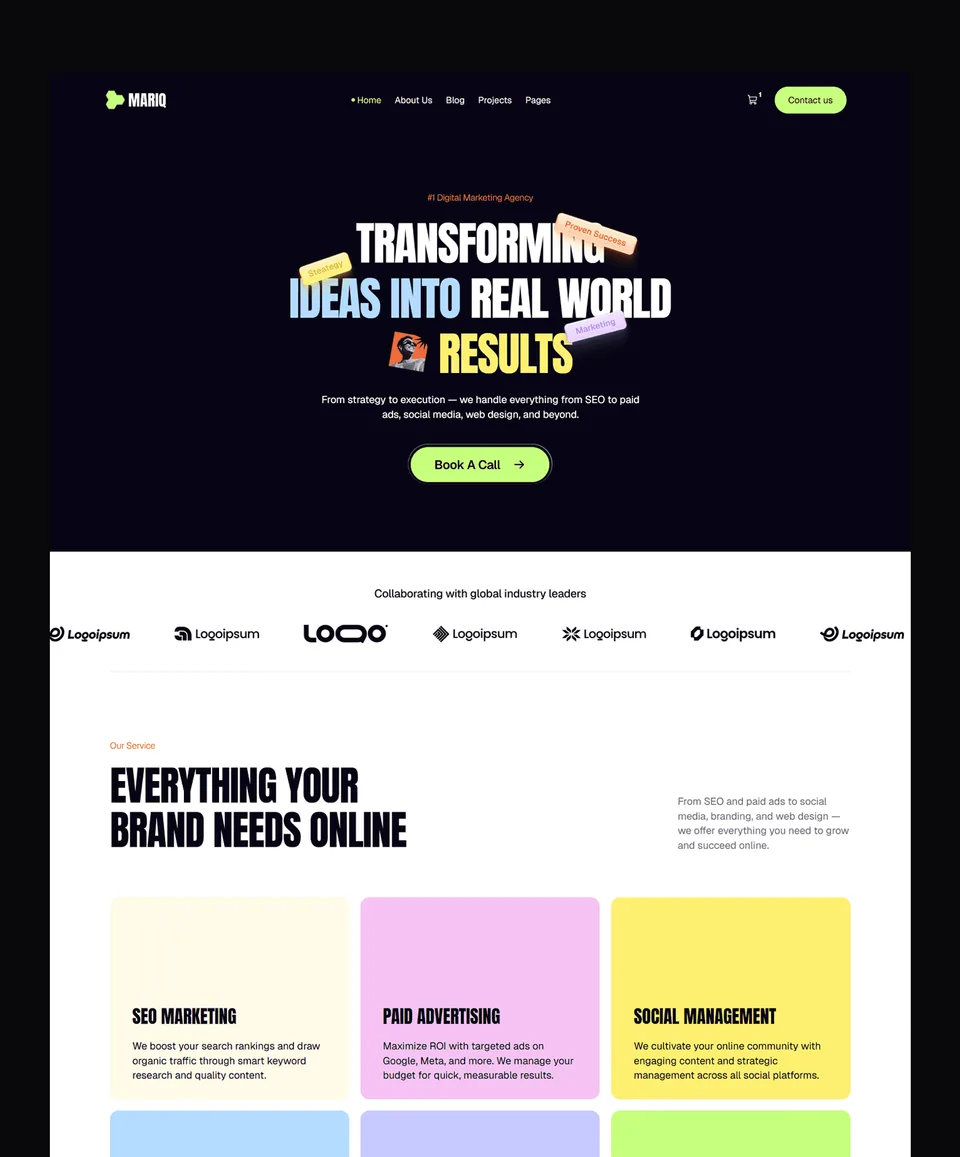
Mariq is an 11-page template for marketing agencies and creative teams, with bold layouts and two CMS collections, so it fits within Basic's limit. It is free on Framer; the Figma file is sold separately for $19.
Virion: a SaaS startup site

Virion is a 12-page template for SaaS startups, with two CMS collections, so it fits within Basic's limit. It is free on Framer; the Figma file is $19.
Minux: a creative studio site

Minux is a 16-page dark, monochrome template for creative studios and branding agencies, with case studies, a journal, pricing and continuous motion to take apart. Its three CMS collections need Pro or the add-on. It is one of Waida's newest templates and free on Framer; the Figma file is $19.
Common Beginner Mistakes in Framer
Most beginner problems come from editing one element when the change belonged in a shared style, component or breakpoint. These are the ones worth avoiding from the start:
- Restyling headings one by one: change the text style instead, or the next page you add will not match.
- Checking only the three presets: Framer's Academy advises resizing between breakpoints too, because layouts can break at in-between widths.
- Picking a plan before counting collections: compare the template's CMS collections with the plan's limit before you upgrade.
- Publishing without a preview pass: open Preview, resize it slowly, and click every link before visitors see the site.
- Leaving template content in place: replace placeholder text, images, page titles and descriptions on every page, including CMS items.
Once your first site is live, the same six steps work for every project after it. Our Webflow tutorial follows the same structure if you want to compare the two builders.
Framer templates to start from
All 39 Framer templates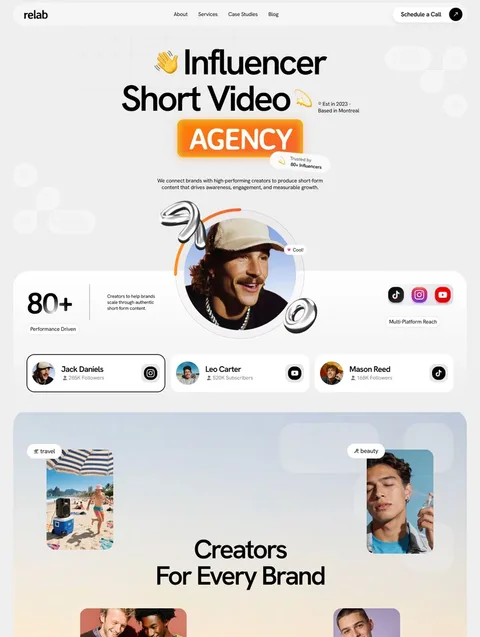




Frequently asked questions
Can I learn Framer for free?
Yes. The Free plan lets you build a site and publish it on a framer.app subdomain, and Framer Academy publishes video lessons for beginners. You only pay when you need a custom domain or higher limits.
Do I need to know code to use Framer?
No. Framer is a visual editor: you build pages on a canvas, style them in the right sidebar and publish with one button. Code is optional, for custom components or embeds.
How do I use a Framer template?
Open the template's remix link, check the preview and click Copy. Framer creates an exact copy of the project in your workspace, which you then edit and publish as your own site.
Can I publish a Framer site for free?
Yes, on a framer.app subdomain. Connecting your own domain needs a paid site plan, from $10 a month billed yearly for Basic, and Framer describes the Free plan as ideal for non-commercial use.
Does Framer work on Windows?
Yes. Framer runs in a recent version of Chrome, Safari, Firefox or Edge on Windows, macOS, Linux or ChromeOS, and Framer also offers a desktop app for macOS and Windows.
Can I use one Waida Framer template for client sites?
Yes. A Waida licence covers one person and unlimited personal, commercial and client projects, with no attribution required. The full terms are on our [licence terms page](/legal/terms).
A first Framer site takes six steps: a free account, a remixed template, the editor's views, content and styles, breakpoints and preview, and a publish to framer.app. Building on a real template teaches you more than any number of videos, and you only pay when you add a site plan for a custom domain, from $10 a month billed yearly.
Browse our Framer templates to pick a starting point: 24 of the 39 are free with a free Waida account (see the free Framer templates), and premium Framer templates cost $49 to $99 each, or $159 for the Framer Bundle on our pricing page. If you would rather have us set it up, our template customisation service starts at $499.

More from Kazi
Related articles
More in Framer
Framer CMS: How It Works, Limits and Plans in 2026
How the Framer CMS works in 2026: collections, field types, detail pages, filters, plan limits and how it compares with the Webflow CMS.
Figma to Framer: How to Move a Design in 2026
How to move a Figma design into Framer with Framer's free plugin: preparing the file, copying and pasting, fixing fonts and breakpoints, and publishing.

Best Framer SaaS Templates: 10 Landing Page Picks for Startups in 2026
Ten Framer templates for SaaS and AI startups, from single landing pages to full product sites. Seven are free, with who each one suits.