Webflow Tutorial: How to Build Your First Site in 2026
A step-by-step Webflow tutorial for beginners, from a free account and a template to a published site on your own domain.
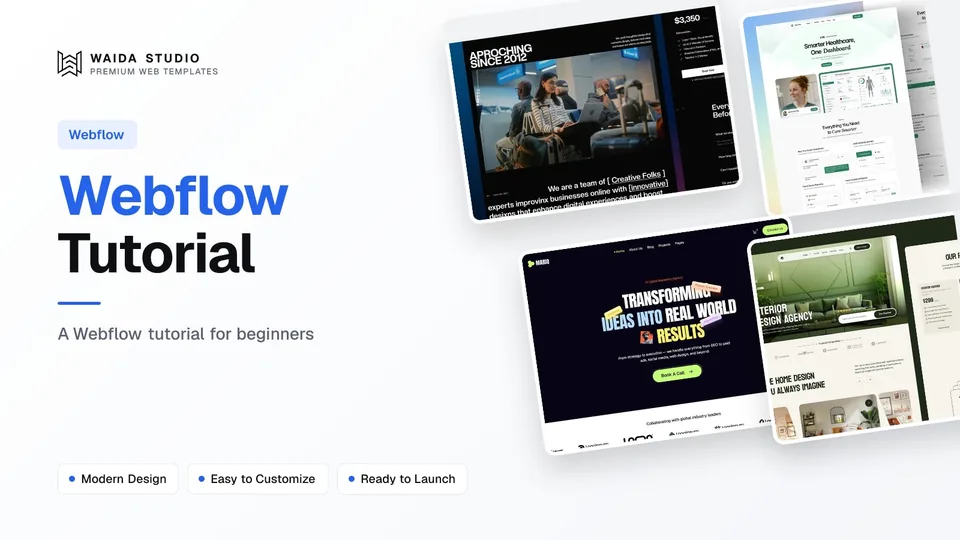
The fastest way to learn Webflow is to build one real site: create a free account, start from a template, learn the Designer's main panels, edit content and classes, check each breakpoint, then publish to your free webflow.io address. You only pay when you connect a custom domain.
This tutorial walks through those six steps in order. Every menu name, shortcut and limit below was checked against Webflow's own help centre and pricing page on 17 October 2026, so the labels should match what you see on screen. If you want the background on what Webflow is first, read our complete guide to Webflow.
Step 1: Create a Free Webflow Account
Sign up on Webflow's site with an email and password or a Google account, then verify your email address. Your account starts with a free Starter Workspace, which is enough to build and publish a site on a webflow.io subdomain.
Before you begin, check your setup. Webflow's Intro to Webflow article says the Designer needs a mouse-and-keyboard computer with a screen at least 1268px wide, and supports the last three major versions of Chrome, Edge, Firefox and Safari. A tablet or phone will not do for building.
What you need | Detail |
|---|---|
A Webflow account | Free; email and password or Google sign-in, email verified |
A computer | Mouse and keyboard, screen at least 1268px wide |
A browser | Recent Chrome, Edge, Firefox or Safari |
Content | Your text, logo and images, ready before you start editing |
A domain (later) | Only needed when you publish beyond webflow.io; requires a paid Site plan |
If you sign up with Google, Webflow's sign-up guide notes that you must keep logging in with Google; your Gmail password will not work in the normal password field.
Step 2: Start From a Template or a Blank Site
Start from a template. In your Dashboard, click New site and choose a blank site or a template; a template arrives as a brand-new site with all its pages, which you then edit. Taking a finished site apart teaches you structure, classes and layout faster than a blank canvas.
Templates bought outside Webflow's own marketplace usually come as a link. You open it while signed in, choose the Workspace that should hold the site, name it, and Webflow creates the copy in your Dashboard. Webflow describes the same flow for community sites in its guide to cloning a site: Clone in Webflow, pick a Workspace, Create site.
One limit catches beginners. Webflow's templates overview says a template-based site with more than two pages can stay on the free plan and you can edit every existing page, but you cannot add or duplicate a page until you add a paid Site plan or Workspace plan. For learning, that is fine.
Step 3: Learn the Designer's Main Panels
Open your site and you land in the Designer. The large area in the middle is the canvas, where you click and edit the page directly. Tools sit in a left toolbar, styling in a right toolbar, and publishing in the top bar. Webflow saves your work automatically as you go.
You do not need every panel on day one. These are the ones a beginner uses constantly, with the keyboard shortcuts Webflow lists:
Panel | Shortcut | What you use it for |
|---|---|---|
Add panel | A | Add elements (sections, text, images, forms) and layouts |
Navigator | Z | See and select the page's element tree |
Pages panel | P | Switch pages, create pages and open page settings |
Assets panel | J | Upload and organise images, documents and animations |
Style panel | S | Set every CSS property of the selected element |
Element settings | D | Links, attributes and element-specific options |
Interactions | H | Animations and scroll or click effects |
Quick find | Ctrl/Cmd + E | Search for elements, pages, components and collections |
The Navigator is the panel to keep open while you learn. Clicking around the canvas can select the wrong wrapper; the Navigator shows exactly which element is selected and what sits inside it. The breadcrumb in the canvas bar does the same job in one line.
Step 4: Edit Content, Then Styles With Classes
Change content first and design second. Edit text right on the canvas, swap images through the Assets panel, and only then touch styles. In Webflow, styles live in classes, so one change to a class updates every element that uses it across the site.
Webflow's classes article explains the model. When you style an element, a class is created and applied automatically. Editing that class later changes every instance of it. To change one instance only, add a combo class next to the base class in the Style selector field and style that instead.
- Rename classes by purpose, not looks: Webflow's own example is form-button rather than blue-button.
- Use combo classes for variations: a dark version of a card is the base card class plus a dark combo, not a new class from scratch.
- Check before you restyle: select an element and look at the class name first; editing a shared class in a template can change many pages at once.
- Edit the live site quickly later: adding ?update to the end of a Webflow-hosted page URL opens that page in the canvas, per Webflow's live-site shortcut guide.
Step 5: Check Every Breakpoint
Design on desktop, then check tablet and both mobile views before publishing. Breakpoint icons sit in the canvas bar. Styles set on desktop cascade down to smaller screens, and anything you change on tablet only flows down to the mobile views, not back up.
The defaults, from Webflow's breakpoints overview, are tablet at 991px and below, mobile landscape at 767px and below, and mobile portrait at 479px and below. You can also add larger breakpoints at 1280px, 1440px and 1920px, but once added they cannot be removed, so leave them alone until you need them.
Two rules save a lot of confusion. Moving or deleting an element affects every breakpoint, so hide an element on one screen size with display set to none instead of deleting it. And content changes, such as new text or a replaced image, apply to all breakpoints at once.
Step 6: Publish to Webflow.io, Then a Custom Domain
Click Publish in the top bar, tick the domain, and click Publish to selected domains. Every site gets a free subdomain such as yoursite.webflow.io, which works as a staging address for testing and feedback. A custom domain needs a paid Site plan.
Webflow's publishing guide adds a shortcut: Shift + P opens the publish menu and Shift + Enter publishes to the selected domains. You can rename the webflow.io subdomain under Site settings, Publishing, Staging; old read-only links stop working when you do.
When you are ready to go live, add a Site plan, then go to Site settings, Publishing, Production and click Add a custom domain. Webflow's quick connect guide walks through signing in to your domain provider, verifying the domain and publishing; DNS changes can take up to 48 hours, though usually a few hours.
Webflow site plan | Price checked 17 Oct 2026 | What a beginner gets |
|---|---|---|
Starter | Free | webflow.io domain, 2 static pages, limited CMS, 1 GB bandwidth |
Basic | $15/mo billed yearly ($25 monthly) | Custom domain, 300 static pages, no CMS |
Premium | $25/mo billed yearly ($39 monthly) | Everything in Basic plus the Webflow CMS |
Prices come from Webflow's pricing page and are per site. If your template uses CMS collections such as a blog or case studies, Premium is the plan that keeps them working on a custom domain; our Webflow website builder review covers the plans in more depth.
Webflow Templates to Practise On
A complete multi-page template is the best practice material, because you learn from real classes, components and CMS collections. These three are our own Waida Studio templates; each is a full site you clone into your Webflow Workspace and edit freely.
Zelda: Free

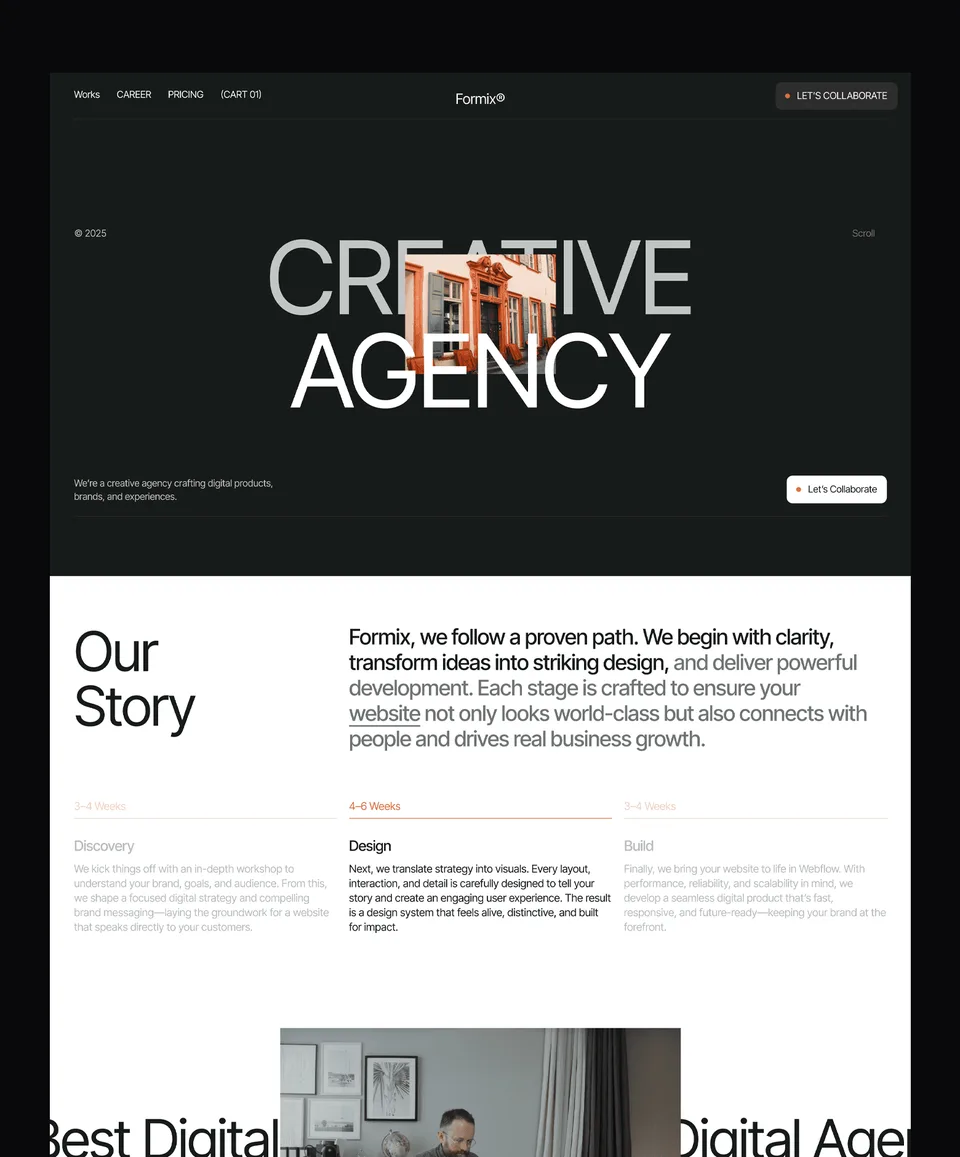
Zelda is a clean agency and studio template, free on Webflow with a free Waida account: sign in, then clone it into your Workspace. Its Figma file is free too, which helps if you also want to practise the Figma-to-Webflow workflow.
Medonix: Free

Medonix is a medical SaaS template, also free on Webflow with a free Waida account and with its Figma file included. It is a good second project because it is built for a product rather than a studio, so its layout differs from Zelda's.
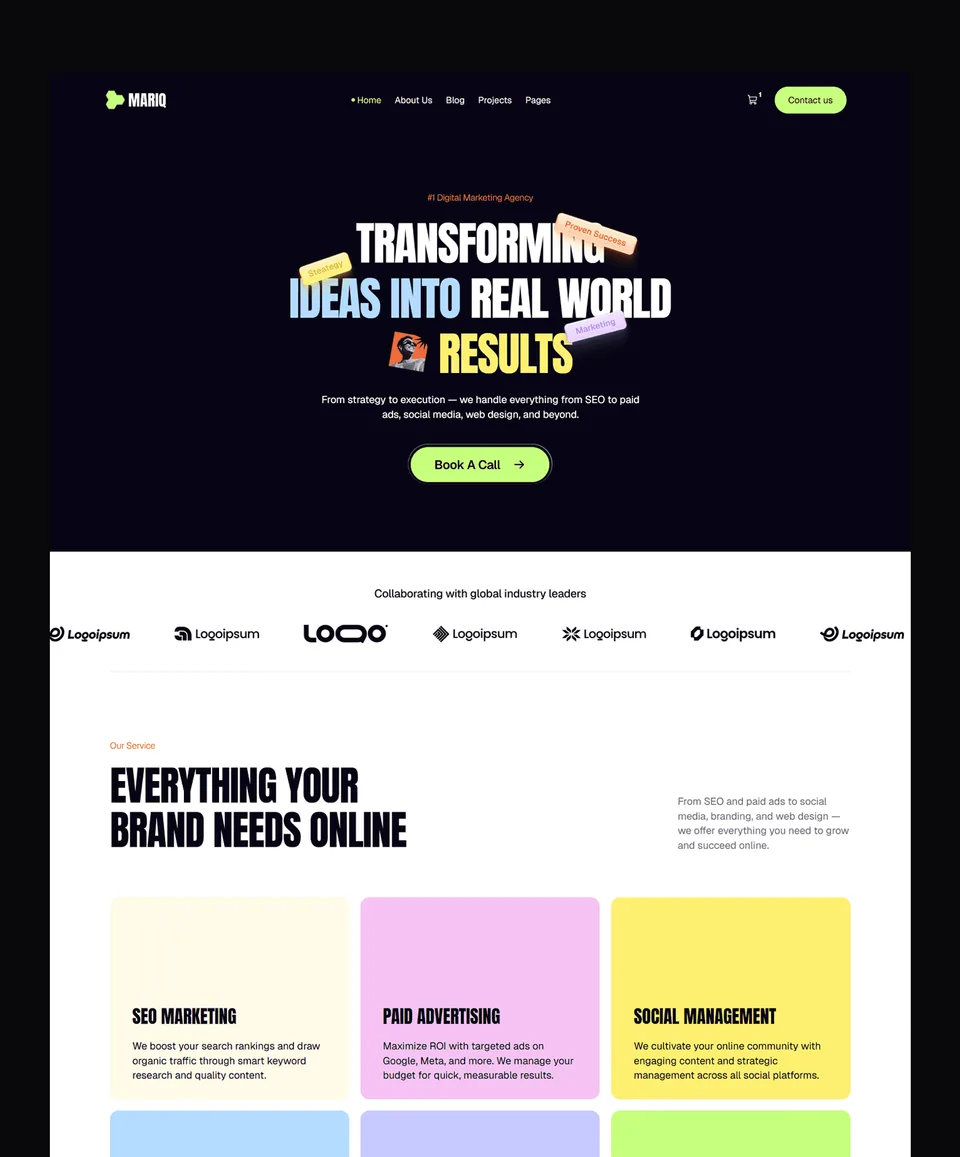
Mariq: $79 on Webflow

Mariq is a marketing agency template with CMS-powered pages for services and case studies, which makes it useful for learning collections. It costs $79 on Webflow, and the Figma file is sold separately for $19.
One difference from Webflow's marketplace matters if you build for clients. Webflow's templates overview says paid marketplace templates carry a single-use licence, one site per purchase. A Waida licence covers one person and unlimited personal, commercial and client projects, as set out in our licence terms.
Where to Keep Learning
After your first site, take Webflow's free Webflow 101 course. Its course page lists it as a beginner course of 20 lessons, about 2 hours 30 minutes, in which you build a full landing page step by step, including responsiveness, interactions and publishing.
Then learn the CMS, because that is where Webflow pulls ahead of simpler builders. If you are still choosing a tool, our Webflow vs Framer comparison explains which suits which kind of project.
Webflow templates to start from
All 36 Webflow templates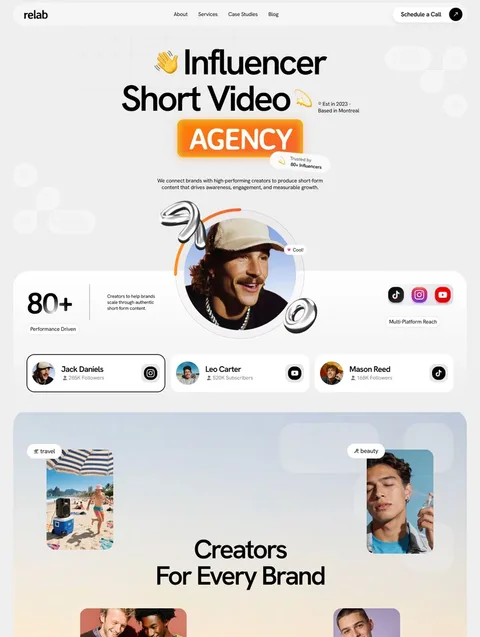

Frequently asked questions
Can I learn Webflow for free?
Yes. A free Starter Workspace lets you build and publish a site on a webflow.io subdomain, and Webflow University's courses, including Webflow 101, are free. You only pay when you need a custom domain or more pages.
How long does it take to learn Webflow?
Webflow's own Webflow 101 course runs about 2 hours 30 minutes across 20 lessons. Expect a first template-based site to take longer than that, because classes and breakpoints take practice.
Do I need to know HTML and CSS to use Webflow?
No, but it helps. Webflow is a visual editor on top of HTML and CSS, so terms like classes, padding, flexbox and breakpoints appear throughout the Style panel. Webflow 101 opens with short lessons on the box model, HTML and CSS.
Can I use a Webflow template on the free plan?
Yes. Webflow says a template-based site with more than two pages can stay on the free plan and you can edit all its existing pages. You need a paid Site or Workspace plan to add or duplicate pages and to use a custom domain.
How do I publish a Webflow site?
Click Publish in the top bar, tick the domain you want, and click Publish to selected domains. Every site can publish free to a webflow.io subdomain; a custom domain needs a paid Site plan and a verified domain.
Can I use one Waida Webflow template for client sites?
Yes. A Waida licence covers one person and unlimited personal, commercial and client projects with no attribution required. Webflow marketplace templates, by contrast, come with a single-use licence.
A first Webflow site takes six steps: a free account, a template, the main panels, content and classes, breakpoints, and a publish to webflow.io. Building on a real template teaches you more than any number of videos, and you only pay when you add a Site plan for a custom domain, from $15 a month billed yearly.
Browse our Webflow templates to pick a starting point: Zelda and Medonix are free with a free Waida account, and premium Webflow templates cost $59 to $129 each, or $159 for the Webflow Bundle. If you would rather have us set it up, our template customisation service starts at $499.

More from Kazi
Related articles
More in WebflowBest Free Webflow Templates: 10 Picks for 2026
Ten free Webflow templates checked on their own pages today, with who each suits and what the Webflow site plan costs once you publish.
Webflow Website Builder: Is It Worth It in 2026?
An honest look at the Webflow website builder in 2026: what it costs, what you get, the learning curve, and who it is worth it for.
Figma to Webflow: Plugin, Workflow and Limits in 2026
How to move a Figma design into Webflow with Webflow's own plugin and app: what syncs, what to prepare, the limits, and what publishing costs.