Figma to Framer: How to Move a Design in 2026
How to move a Figma design into Framer with Framer's free plugin: preparing the file, copying and pasting, fixing fonts and breakpoints, and publishing.
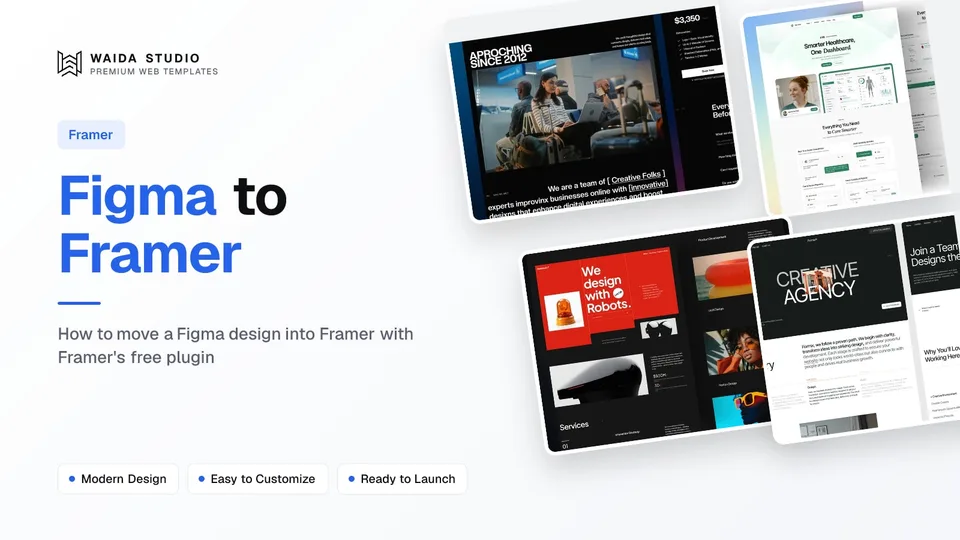
To move a design from Figma to Framer, install Framer's free Figma plugin, Figma to HTML with Framer, select the frames or layers you want, copy them with the plugin and paste them onto a Framer canvas. The layers arrive editable. You then fix fonts, set breakpoints, add interactions and CMS content, and publish from Framer.
What the Figma to Framer Plugin Does
The plugin is a copy-and-paste bridge, not a code export. Framer's plugin listing says it adapts your design "to Framer's layout tools in real time", and Framer's Figma to HTML page says the import keeps "layers, groups, and structure". What you get is an editable Framer design, which Framer then hosts as a live site.
It is published by Framer itself on the Figma Community and costs nothing to install. You need a Framer account to paste into, but a free one is enough to import and design; paying only comes in when you publish to your own domain.
Two things it is not. It is not a way to download HTML: Framer's own FAQ says it produces "a live React-based website rather than a downloadable folder" of HTML, CSS and JavaScript. And it is not the same as Figma Sites, Figma's own publishing product, which we compare in Framer vs Figma Sites.
Prepare the Figma File First
A tidy Figma file imports into a tidy Framer page, so spend twenty minutes on structure before you copy anything. The plugin carries your layers and groups across as they are; messy nesting in Figma becomes messy nesting in Framer, and you fix it twice.
- One frame per section. Hero, features, pricing and footer as separate top-level frames make it easy to import and check one at a time.
- Use [auto layout](/glossary#figma-auto-layout) for rows, columns and cards. Layouts built from spacing rules translate more naturally into a responsive web layout than hand-placed layers.
- Name your layers. "Pricing card / Pro" is easier to find in Framer's layer panel than "Frame 482".
- Flatten decoration, not text. Merge complex illustrations into a single vector or image, but keep headings and body copy as live text so they stay editable and searchable.
- Note your fonts. List every typeface and weight the design uses. Anything outside Framer's built-in, Google Fonts and Fontshare sets will need uploading.
Desktop is the usual starting frame. Framer's breakpoints are where tablet and phone layouts are set, so you do not need to copy three versions of every section unless your mobile design is very different.
How to Copy a Design from Figma to Framer, Step by Step
The import takes five steps per section. Framer's Academy lesson on importing from Figma walks through the same sequence on video.
- In Figma, install Figma to HTML with Framer from the Community page and run it from the plugins menu.
- Select what you want to move: a single layer, a group, or a whole section. Framer recommends focused selections over whole pages.
- Copy the selection with the plugin.
- Open your Framer project and paste onto the canvas, or into the page where the section belongs.
- Run the plugin again for the next selection, and repeat until every section is across.
Framer's Academy lesson says imported layers arrive as "editable elements on the Framer canvas", so text, images, layout and styling can be changed straight away. Import one section, check it, then do the next; a problem caught on the hero is cheaper than one caught after twelve sections.
What Comes Across and What You Add in Framer
The import brings the visual design; the website behaviour is added in Framer. Framer's own pages describe interactions, animations, breakpoints, reusable components, CMS content and SEO settings as things you add after pasting, and it warns that "some complex Figma structures may need cleanup for the web".
Part of the site | After the paste | Where you finish it |
|---|---|---|
Layers, groups and structure | Kept, as editable Framer layers | Tidy the layer tree and naming |
Text, images and styling | Editable on the canvas | Swap in final copy and web-sized images |
Custom fonts | May fall back to Framer's default font | Upload the font file and reapply it |
Tablet and phone layouts | Adjusted in Framer | Framer breakpoints |
Interactions and animations | Added in Framer | Effects, hover states and page transitions |
Reusable components | Added in Framer | Turn repeated cards and navs into components |
Blog posts, case studies, listings | Added in Framer | Framer CMS collections |
Titles, descriptions, redirects | Added in Framer | Page settings and site settings |
The practical test is simple. After each paste, resize the Framer canvas to phone width. Whatever breaks is the list of things to fix before you go further.
Fix Fonts, Spacing and Breakpoints After You Paste
Framer's checklist after an import covers fonts, image assets, spacing and responsive behaviour. Work through them per section, because a fix on one section often repeats across the rest.
Fonts. Framer's custom fonts help article says custom fonts may be replaced with Framer's default font when the original is not available. Upload the font in the font picker's Custom tab, select the affected text layers and reapply it. Framer recommends the .woff2 format for speed, and you need a font licence that covers web use.
Images. Check the size of every imported image. Replace heavy PNGs with properly sized JPG or WebP files, and move decorative images to backgrounds where it makes sense.
Spacing and layout. Check that sections use Framer's stacks and grids rather than fixed positions, so they reflow on smaller screens. Anything pinned to an exact position in Figma is the usual cause of overlap on a phone.
Breakpoints. Set the tablet and phone breakpoints, then adjust type sizes, hide or reorder elements, and stack columns. Expect this step to take longer than the import itself.
What It Costs to Publish in Framer
Importing and designing in Framer is free; you pay when the site goes live on your own domain. Framer's pricing page today lists these plans, with prices per month on yearly billing.
Framer plan | Price | What matters for an imported site |
|---|---|---|
Free | $0 | Framer domain only, 1 GB bandwidth; Framer calls it "ideal for non-commercial use" |
Basic | $10/month | Your own domain, 2 CMS collections, 50 GB bandwidth |
Pro | $30/month | 10 CMS collections, 100 GB bandwidth, redirects, staging |
Enterprise | Custom | Custom limits and dedicated support |
Connecting a custom domain needs a paid plan, according to Framer's pricing FAQ. Our Framer pricing guide breaks the plans down further, including add-ons and editor seats.
Skip the Import: Start from a Framer Template with Its Figma File
If you have not designed the site yet, you can skip the import entirely. A Framer template is already built with stacks, breakpoints and components, and a matching Figma file gives you the same design to explore and present in Figma. Every Waida Framer template has one.
Our own templates: the three below are Waida Studio templates; we made them. Figma files are sold separately from templates ($19 each, or every Figma file in the $49 Figma Bundle), except Zelda's and Medonix's, which are free.
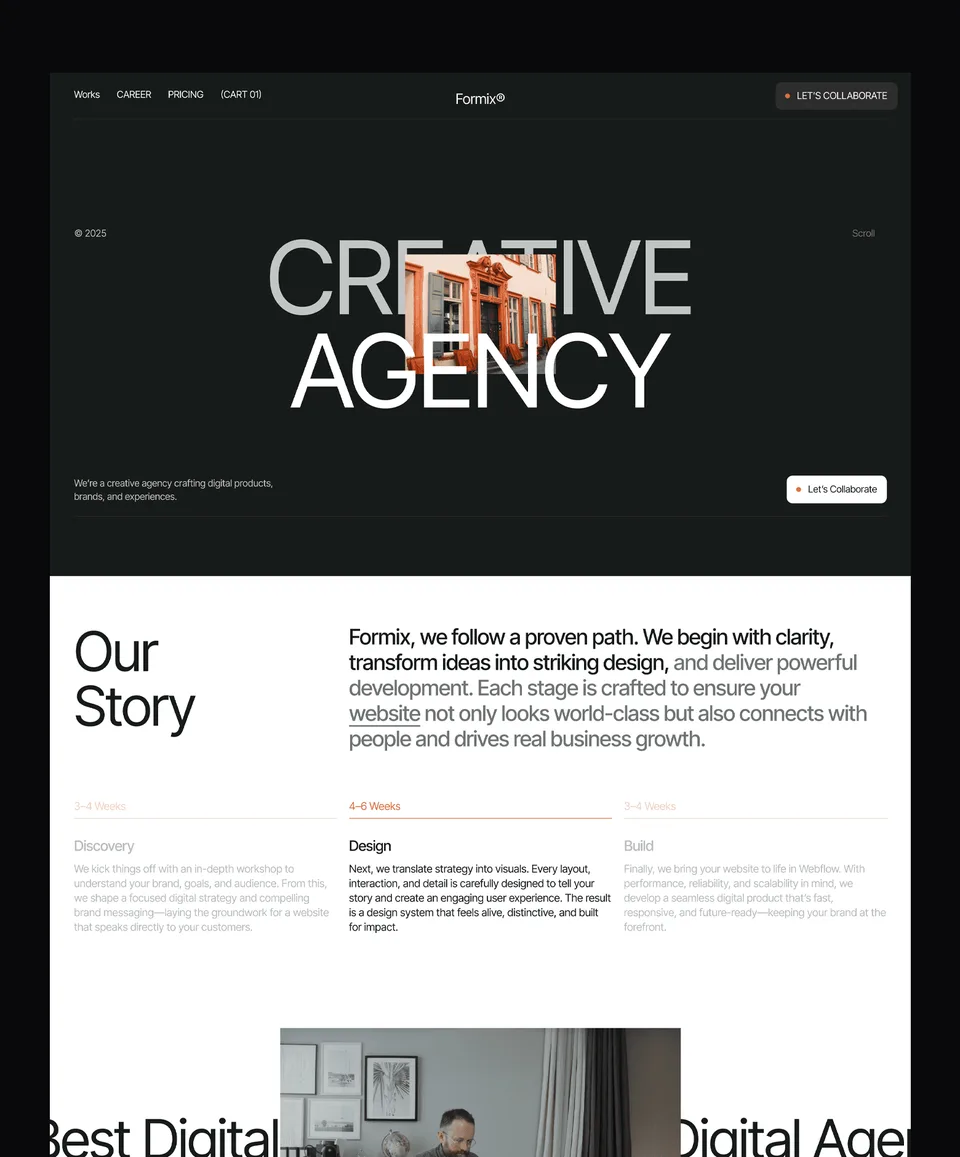
Zelda is a dark design-agency template with 13 pages. The Framer version and its Figma file are both free with a free Waida account.

Medonix is a medical SaaS startup template with 13 pages, also free on Framer with a free Waida account, Figma file included.

Nuestudio is a bold creative-agency template with 11 pages. The Framer template is $49, and its Figma file is $19 on its own.

Of the 35 Framer templates in the catalogue, 20 are free with a Waida account; the full set is on the free Framer templates page, and every Figma file is on the Figma templates page. The Waida licence covers one person and unlimited projects, including client work, as set out in the terms.
Framer templates to start from
All 35 Framer templates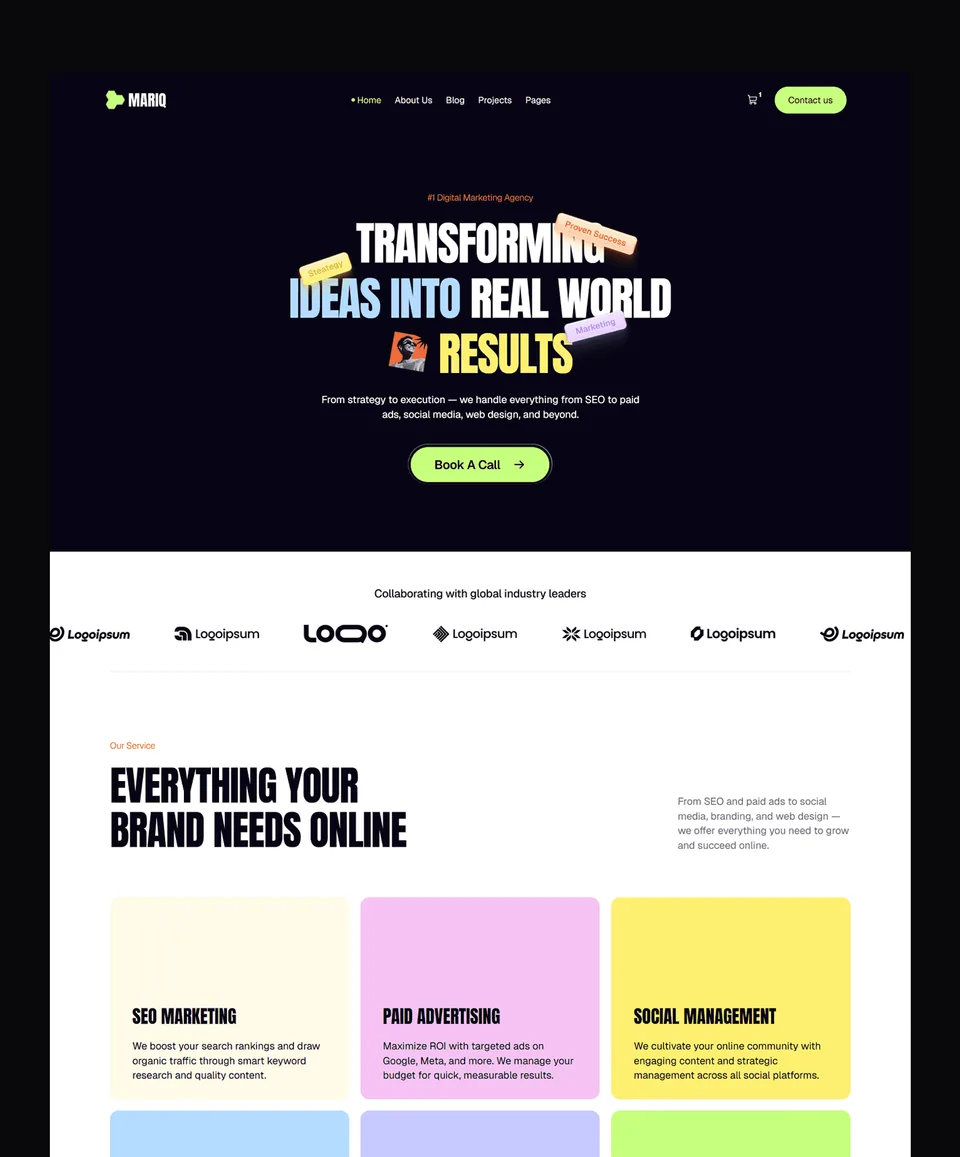


Frequently asked questions
How do I import a Figma design into Framer?
Install Framer's free Figma plugin, Figma to HTML with Framer, select the layers or sections you want, copy them with the plugin, and paste them onto your Framer canvas. Repeat for each section.
Is the Figma to Framer plugin free?
Yes. Framer publishes the plugin on the Figma Community at no cost, and you can import and design on Framer's free plan. You pay only when you publish on a custom domain.
Does Framer keep my Figma layers editable?
Yes. Framer says imported layers arrive as editable elements, so you can change text, images, layout and styling. Complex Figma structures may still need cleaning up for the web.
Why did my fonts change after importing from Figma to Framer?
Framer replaces a custom font with its default font when the original is not available in Framer. Upload the font file in the font picker's Custom tab and reapply it to the affected text layers.
Can I export HTML from Framer after importing from Figma?
No. Framer publishes a hosted website rather than giving you a folder of HTML, CSS and JavaScript files. If you need code you own, use an HTML, Next.js or Astro template instead.
Do Waida Framer templates include a Figma file?
Every Waida Framer template has a matching Figma file, sold separately at $19 or in the $49 Figma Bundle. Zelda's and Medonix's Figma files are free with a Waida account.
Moving from Figma to Framer is a copy and a paste per section with Framer's free plugin, followed by the real work: fonts, images, stacks, breakpoints, interactions and CMS. Prepare the Figma file with clear frames and auto layout, import one section at a time, and check each at phone width before moving on.
If you would rather start from something already built, browse the Framer templates: 20 are free with a Waida account, the rest are paid, and Figma files are $19 each or $49 for all of them. To have a template adapted for you, template customisation is $499 with 7-day delivery.

More from Kazi
Related articles
More in Framer
Best Framer SaaS Templates: 10 Landing Page Picks for Startups in 2026
Ten Framer templates for SaaS and AI startups, from single landing pages to full product sites. Seven are free, with who each one suits.

Framer Pricing in 2026: Every Plan, the Free Plan and the Student Discount
Free, Basic, Pro and Enterprise compared: what the free plan allows, how the student discount works, and the costs beyond the plan.

Framer Website Examples: 20 Live Sites Built with Framer in 2026
Twenty live Framer websites, from Miro and Razorpay to SaaS startups, studios, portfolios and local businesses. Every one checked on 11 September 2026.