Framer CMS: How It Works, Limits and Plans in 2026
How the Framer CMS works in 2026: collections, field types, detail pages, filters, plan limits and how it compares with the Webflow CMS.
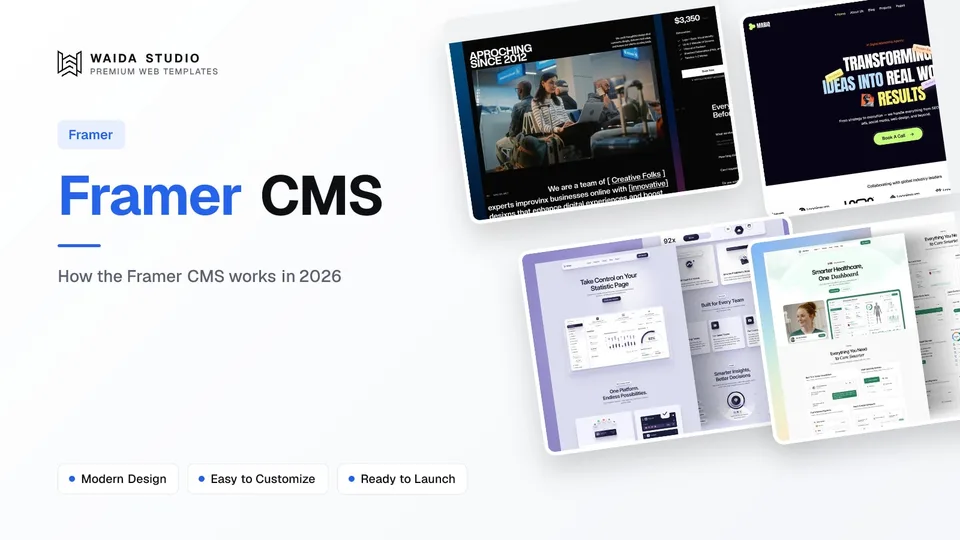
The Framer CMS is Framer's built-in content system. You store repeating content such as blog posts, projects or team members in collections, design one list and one detail page, and Framer generates a page for every item. Basic allows 2 collections and 1,000 items; Pro allows 10 collections and 2,500 items.
That makes it a good fit for marketing sites, portfolios and company blogs, and a weaker fit for sites with tens of thousands of records. This guide explains how collections, fields and CMS pages fit together, what each plan allows according to Framer's pricing page today, how plugins sync outside data, and where the Webflow CMS goes further.
What Is the Framer CMS?
The Framer CMS is a set of collections that live inside your Framer project. Each collection is a table: the columns are fields, the rows are items, and every item can become its own page on your site. You edit content in the CMS panel, on the canvas, or on the live site.
Three terms do most of the work. A collection groups items of one kind, such as Blog or Projects. A field is one piece of each item, such as a title, cover image or publish date. A CMS page is the layout that Framer fills with each item's fields. If you're new to the vocabulary, the Framer CMS entry in our glossary covers the basics.
Framer's developer documentation for the CMS names the field types a collection can hold:
- Text: plain text, for titles, names and short descriptions.
- Formatted text: rich text with headings, lists, links and images, for article bodies.
- Image and file: uploads for covers, galleries and downloadable files.
- Number, date, toggle (boolean) and colour: values you can sort, filter or show conditionally.
- Link: a URL, for external case studies or buy buttons.
- Option (enum): a fixed list of choices, such as a status or category label.
- Reference and multi-reference: a link to one or several items in another collection, such as an author or tags.
- Array: a repeating group of values inside one item.
How the Framer CMS Works, Step by Step
A Framer CMS setup has four parts: a collection with fields, the items themselves, a collection list that shows several items on a page, and a detail page that shows one item. You build the list and the detail page once, and every new item appears in both without further design work.
- Create a collection and its fields. Add a collection in the CMS panel and give it the fields your content needs. Framer's CMS page shows the agent creating collections and field types from a plain-language description, too.
- Add items. Type them in, paste Markdown into a formatted text field (Framer's Markdown help article says headings, lists, tables, code blocks and blockquotes convert), or import a spreadsheet as the CMS page shows with a CSV file.
- Add a collection list to a page. Drop a collection list on the canvas, design one card, and Framer repeats it for each item. You can sort by text, date, number or toggle values, and Framer's help article on limiting items shows how to cap how many appear.
- Create the detail page. Open Pages, choose New CMS Page, pick the collection and then Detail Page. The Framer Academy lesson on CMS pages describes it as one layout per collection, with each item's fields supplying the content.
- Add filters if you need them. Framer's dynamic filters guide shows search fields, tabs, dropdowns and checkboxes that let visitors narrow a list on the live site.
References are what keep a CMS tidy. Instead of typing an author's name and photo into every post, you keep an Authors collection and point each post at the right author. Framer's lesson on collection references recommends a single or multi-reference depending on the relationship, so shared details don't need to be copied.
Framer CMS Limits by Plan
Framer's limits are per site. On yearly billing, Basic costs $10 a month and allows 2 CMS collections and 1,000 items; Pro costs $30 a month and allows 10 collections and 2,500 items, with paid add-ons beyond that. These figures come from Framer's pricing page, checked on the day this guide was published.
Free | Basic | Pro | |
|---|---|---|---|
Price (yearly billing) | $0 | $10/month | $30/month |
Custom domain | No, Framer domain only | Yes | Yes |
CMS collections | 10 (per Framer's pricing FAQ) | 2 | 10, then $40 per 10 more (40 max) |
CMS items | Not stated | 1,000 | 2,500, then $20 per 10,000 more (40,000 max) |
Site pages | 1,000 (per the FAQ) | 30 | 150, then $20 per 100 more (700 max) |
Bandwidth | 1 GB | 50 GB | 100 GB, then $40 per 100 GB (2 TB max) |
Staging and redirects | Not listed | Not listed | Yes |
One detail is easy to miss: Framer's pricing FAQ describes the Free plan as "ideal for non-commercial use": it's for exploring and building, not for a client's live site. Each extra editor costs $20 a month, while viewers are free. Our full Framer pricing guide walks through every plan.
Managed Collections: Syncing Content From Other Tools
If your content lives in another tool, a plugin can sync it into a managed collection. Framer's CMS developer docs define two kinds: unmanaged collections, created and edited by people, and managed collections, "primarily controlled by Plugins" that sync data between Framer and a third party.
The trade-off is control. In a managed collection, only the plugin can change the structure or add, edit and delete items, unless the plugin marks a field as user-editable. References in a managed collection can only point to other collections managed by the same plugin. That's useful for a product catalogue or job board fed from a spreadsheet or database, and unnecessary for a blog your team writes in Framer.
Framer CMS vs Webflow CMS
The Webflow CMS holds far more content on its first CMS plan: Webflow Premium allows 40 collections and 20,000 items for $25 a month billed yearly, against Framer Basic's 2 collections and 1,000 items for $10. Framer is cheaper and simpler for a small blog or portfolio; Webflow suits content-heavy sites.
Framer CMS | Webflow CMS | |
|---|---|---|
Free plan | Framer domain, 1 GB bandwidth | Starter: webflow.io domain, 20 collections, 50 items |
Cheapest plan with a custom domain and CMS | Basic, $10/month yearly: 2 collections, 1,000 items | Premium, $25/month yearly: 40 collections, 20,000 items (Basic at $15 has no CMS) |
Larger sites | Pro, $30/month yearly: 10 collections, 2,500 items; add-ons to 40,000 items | Platform plans from $2,500/month, annual contract |
Editing | CMS panel, canvas and on-page editing on the live site | Designer canvas and AI-generated CMS items |
Publishing extras listed on the pricing page | Staging and branching on Pro | Single-item publishing, scheduled items, RSS feeds |
Sources: Framer pricing and Webflow pricing, both fetched on the day of publishing. For the whole platform comparison, including design, interactions and hosting, read Webflow vs Framer.
How Clients and Teams Edit Framer CMS Content
Clients can update content from the live site without opening the canvas. Framer's on-page editing article says site owners and collaborators with Content permissions can edit text, images and CMS content on the published site, and changes wait until someone with publishing permissions publishes them.
That review step matters for client work. A client can fix a typo or add a blog post, but nothing reaches the public site until you, or whoever holds publishing rights, approve it. On-page editing can also add a new CMS page from an existing detail page and edit hidden fields such as SEO descriptions.
SEO fields are worth setting up early. Framer's CMS page says each CMS page can take dynamic titles, descriptions, schema and Open Graph tags from its fields. Our Framer SEO guide covers what to put in them.
Framer Templates With the CMS Already Set Up
The fastest way to learn the Framer CMS is to open a template where it's already wired up and study the collections. These four are Waida Studio's own templates; we made them. Each is free on Framer with a free Waida account: sign in, then remix it into your Framer workspace.
Zelda: four collections

Zelda is an agency and business template with 13 pages and four CMS collections: Work, Blog, Pricing and Change Log. That's more than the Basic plan's two collections, so either delete the collections you won't use before publishing on Basic, or plan for Pro. Zelda's Figma file is free too.
Mariq: blog and projects

Mariq is a marketing agency template with two collections, Blog and Project, so it fits the Basic plan as it comes. The project collection drives the case-study pages; the Figma file is sold separately.
Virion: blog and integrations

Virion is a SaaS template with Blog and Integration collections. The integrations collection is a good example of a CMS used for product content rather than articles: each integration gets its own page from one layout.
Medonix: one blog collection

Medonix is a SaaS and business template with a single Blog collection, the simplest possible setup. It's free on every platform we publish, Figma file included.
Tips for Structuring a Framer CMS
Plan collections before you design, because the Basic plan's two-collection limit forces choices early. Most marketing sites need a blog and one more collection, such as projects, team or jobs; categories and authors can often be option fields instead of collections of their own.
- Count collections against your plan first. On Basic, an Authors and a Categories collection would use your whole allowance before the blog itself.
- Use option fields for short fixed lists. A category with five values rarely needs its own collection and detail page.
- Use references for content you reuse. Authors with photos and bios belong in one collection that posts point to.
- Settle slugs before launch. The slug becomes the item's URL, and changing it later means setting up redirects, which Framer includes on Pro.
- Write SEO fields as you add items. A dedicated meta description field is easier than fixing 50 posts after launch.
- Cap list lengths on the homepage. Show the latest three or six items and link to the full archive.
If you'd rather have someone set this up, our template customisation service adapts a Waida template to your content for $499 with 7-day delivery.
Framer templates to start from
All 39 Framer templates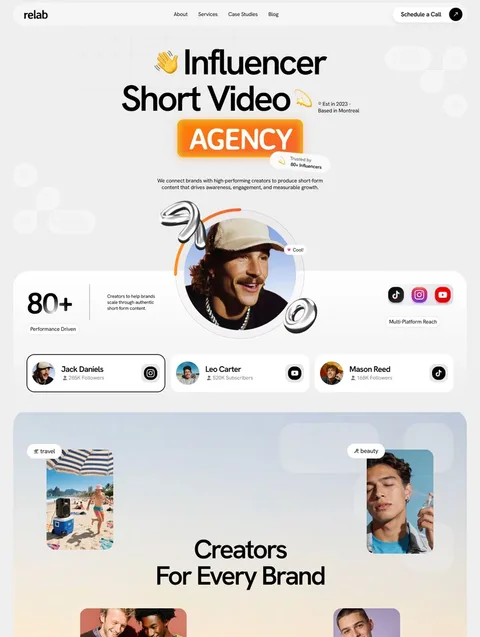




Frequently asked questions
Is the Framer CMS free?
Yes, the CMS is included on every Framer plan. Framer's pricing FAQ says Free plan projects get 10 CMS collections, but they stay on a Framer domain. A custom domain needs Basic ($10 a month yearly, 2 collections) or Pro ($30, 10 collections).
How many CMS items can a Framer site have?
Framer's pricing page lists 1,000 CMS items on Basic and 2,500 on Pro. Pro sites can buy add-ons at $20 per 10,000 items, up to 40,000. Enterprise plans have custom limits.
Can I import content into the Framer CMS?
Yes. Framer's CMS page shows a CSV file turned into a collection, Markdown pasted into a formatted text field converts to rich text, and plugins can sync content from other tools into managed collections.
Does the Framer CMS support references between collections?
Yes. Reference and multi-reference fields link an item to one or several items in another collection, such as a post to its author or tags. In plugin-managed collections, references can only point to collections managed by the same plugin.
Can clients edit Framer CMS content without the editor?
Yes. With on-page editing, collaborators with Content permissions edit text, images and CMS items on the live site. Their changes go live only after someone with publishing permissions publishes them.
Is the Framer CMS better than the Webflow CMS?
It's simpler and cheaper for small sites, but holds less. Framer Basic allows 1,000 items for $10 a month yearly; Webflow Premium allows 20,000 items for $25. Choose Webflow for content-heavy sites.
The Framer CMS covers what most marketing sites, portfolios and company blogs need: collections with references, generated detail pages, filters, on-page editing and SEO fields per item. Its limits are the thing to check: 2 collections and 1,000 items on Basic at $10 a month, 10 and 2,500 on Pro at $30 a month, both billed yearly. Past that, the Webflow CMS holds more content for the money.
To start from a working setup, browse our Framer templates: 39 of them, 24 free Framer templates with a free Waida account and premium ones from $49 to $99, or $159 for every Framer template in the Framer Bundle. The Framer section of our Learn hub covers the rest of the platform.

More from Kazi
Related articles
More in FramerFramer Tutorial: How to Build Your First Site in 2026
A step-by-step Framer tutorial for beginners, from a free account and a remixed template to a published site on your own domain.
Figma to Framer: How to Move a Design in 2026
How to move a Figma design into Framer with Framer's free plugin: preparing the file, copying and pasting, fixing fonts and breakpoints, and publishing.

Best Framer SaaS Templates: 10 Landing Page Picks for Startups in 2026
Ten Framer templates for SaaS and AI startups, from single landing pages to full product sites. Seven are free, with who each one suits.