Webflow CMS: How It Works, Limits and Plans in 2026
How the Webflow CMS works in 2026: collections, field types, collection lists and pages, plan limits, client editing and the limits worth knowing first.
The Webflow CMS is the database built into every Webflow site. You define a collection, such as Blog posts, give it fields, add items, and design one template page that Webflow fills for every item. The free Starter plan allows 20 collections and 50 items; Premium, at $25 a month billed yearly, allows 40 collections and 20,000 items.
The cheaper Basic plan has no CMS at all, which catches many people out. This guide covers how collections, fields, lists and pages fit together, the plan limits on Webflow's pricing page as checked today, the rules that shape a design (100 items per list, three levels of nesting), and how clients edit content without touching the design.
What Is the Webflow CMS?
The Webflow CMS is a structured database inside your Webflow project. Each collection holds one type of content, each item is one entry, and each field is one piece of that entry. Webflow's Intro to the Webflow CMS describes it as content that references "one source of truth" instead of being typed into each page.
Four terms cover almost everything you'll do:
- Collection: a database for one kind of content, such as blog posts, team members, job openings or case studies.
- Collection item: one entry in that collection, such as a single blog post.
- Collection page: the template page Webflow generates for every item. Edit the template once and every item's page updates.
- Collection list: an element that shows several items on any page, including static pages like your home page.
The practical gain is that you never rebuild a page to add content. A new case study is a new item: you fill in its fields, publish, and it appears on its own page and in every list that includes it. If the vocabulary is new, the Webflow CMS entry in our glossary gives the short version.
Webflow CMS Field Types
Webflow offers 16 field types, from plain text to multi-reference. You choose them when you set up a collection, and each one connects to a matching kind of element on the canvas. Webflow's Collection fields article lists them as follows:
Field type | What it holds | Typical use |
|---|---|---|
Plain text | Unformatted text | Titles, names, short summaries |
Rich text | Headings, paragraphs, links and media | Blog post and case study bodies |
Image / Multi-image | One or several uploaded images | Covers, galleries, lightboxes |
Video | A YouTube or Vimeo URL | Embedded product or project videos |
Link / Email / Phone | A URL, address or number | Buttons, mailto and tel links |
Number / Date/Time | Numbers and dates in any display format | Prices, event dates, publish dates |
Switch | Yes or no | "Featured" flags, conditional visibility |
Color | A colour value | Per-item accent or background colours |
Option | One value from a fixed list | Status, category label |
File | An uploaded file | PDF downloads, spec sheets |
Reference / Multi-reference | One or several items from another collection | Authors, tags, related services |
Two details matter before you upload anything. Files and images added to collection fields are publicly reachable, as the same Collection fields article notes, so don't use a field for anything private. And you can't delete a field that is still connected to an element or used in SEO, Open Graph, RSS or search settings until you disconnect it everywhere.
How the Webflow CMS Works, Step by Step
A CMS-driven section takes four steps: create the collection and its fields, design the collection page template, add items, then link to those pages with a collection list. Webflow's own example is a blog, and the steps below follow it. Generated collection pages are hidden by default until something on the site links to them.
- Create a collection. Open the CMS panel, name the collection and add the fields your content needs. Webflow builds the collection URL from its name; if you rename that URL after publishing, the Manage CMS Collections article says you'll need 301 redirects.
- Design the collection page. Lay out one template and connect each text, image and link element to a field. Elements you don't connect stay the same on every item's page.
- Add items. Type them in, generate them, or import them in bulk. Webflow's CSV import guide covers mapping columns to fields and offers a backup before each import; any collection can also be exported to CSV.
- Add a collection list. Drop a collection list on any page, design one item, and Webflow repeats it. Filters, sorting, display limits and pagination then decide which items appear and in what order.
- Publish. On plans that include it, you can also publish or unpublish single items, or schedule them, without republishing the whole site.
Webflow AI can also draft items for you. The Generate CMS Collection items help article says it creates 5, 10 or 20 items at a time and needs a site plan with CMS access. Review generated items before publishing; they're placeholders, not finished copy. For the wider Designer workflow, our Webflow tutorial walks through a first build.
Webflow CMS Limits by Plan
Only two site plans include the CMS for most sites: the free Starter plan, for building and testing on a webflow.io address, and Premium at $25 a month billed yearly. Basic, at $15 a month, is described on Webflow's pricing page as "for simple sites that don't need a CMS." These figures come from Webflow's pricing page, checked today.
Starter (free) | Basic | Premium | |
|---|---|---|---|
Price (billed yearly) | $0 | $15/month | $25/month |
Custom domain | No, webflow.io only | Yes | Yes |
CMS collections | 20 | No CMS | 40 |
CMS items | 50 | No CMS | 20,000 |
Static pages | 2 | 300 | 300 (everything in Basic) |
CMS API rate limit | 60 requests/minute | No CMS | 120 requests/minute |
Single-item, bulk and scheduled publishing, RSS feeds | No | No | Yes |
Site search | Not listed | Not listed | Yes |
Above Premium, Webflow's platform plans start with Team at $2,500 a month on an annual contract. Its comparison table lists 20,000 items (more for a separate fee), 100 collections, and 100 fields with 20 reference fields per collection. Our Webflow website builder guide explains how site plans and Workspace plans fit together.
Collection Lists, References and Nesting
A collection list shows up to 100 items at once. To show more, you turn on pagination, which displays between 1 and 100 items per page. Webflow's Limit Collection lists and Paginate Collection lists articles set out these rules, and add that Webflow site search indexes only the first page of a paginated list.
References connect collections. A blog post can reference one Author item, and a project can multi-reference several Services. The Reference field article says non-Enterprise plans allow up to 10 reference fields per collection and Enterprise plans up to 20. You can filter a list by a referenced item, but you can't sort by a reference field.
Nesting shows related items inside a list, such as each service's case studies. According to Webflow's Nest Collection lists article, you link the collections with a multi-reference field, then nest:
- up to three levels deep (a course, its lessons, each lesson's assignments),
- up to 10 nested lists per page,
- up to 100 nested items per parent item,
- and never inside a component.
Plan your structure around these limits before you design. A mega menu that nests three collections, or a resource hub with more than 100 items on one page, needs pagination or a second list using the Skip setting, which Webflow documents for exactly this case.
How Clients Edit Webflow CMS Content
Clients edit CMS content through a seat in your Workspace rather than in a separate tool. Webflow's pricing FAQ says clients on Starter, Freelancer and Agency Workspace plans "can use client seats to publish new content anytime." The free Starter Workspace includes 1 free client seat per paid site, and Agency ($35 a month billed yearly) includes 3 per site.
For in-house teams, a Limited seat costs $15 a month per seat billed yearly and covers editing content and building pages with existing components; a Full seat costs $39. Restricting an editor to one collection, such as the blog only, is limited to specific Enterprise plans and partners, according to the CMS collection-specific access article.
One more limit to know before you commit: Webflow's code export produces HTML and CSS, but the pricing page states that dynamic content (CMS items and pages) can't be exported. Your content leaves through CSV export or the CMS API instead. If portability matters more than the visual editor, compare the options in Webflow vs WordPress.
Webflow CMS vs Framer CMS
The Webflow CMS suits content-heavy sites: 20,000 items and 40 collections on Premium, deep references, nested lists and scheduled publishing. The Framer CMS is simpler and cheaper for a small blog or portfolio: Framer's pricing page lists Basic at $10 a month with 2 collections and 1,000 items. Choose by how much structured content you'll have in a year, not by how much you have at launch.
Our Framer CMS guide covers Framer's collections, plugins and plan limits in the same format as this article, and Webflow vs Framer compares the two platforms on design, interactions, hosting and price.
Webflow Templates With the CMS Already Set Up
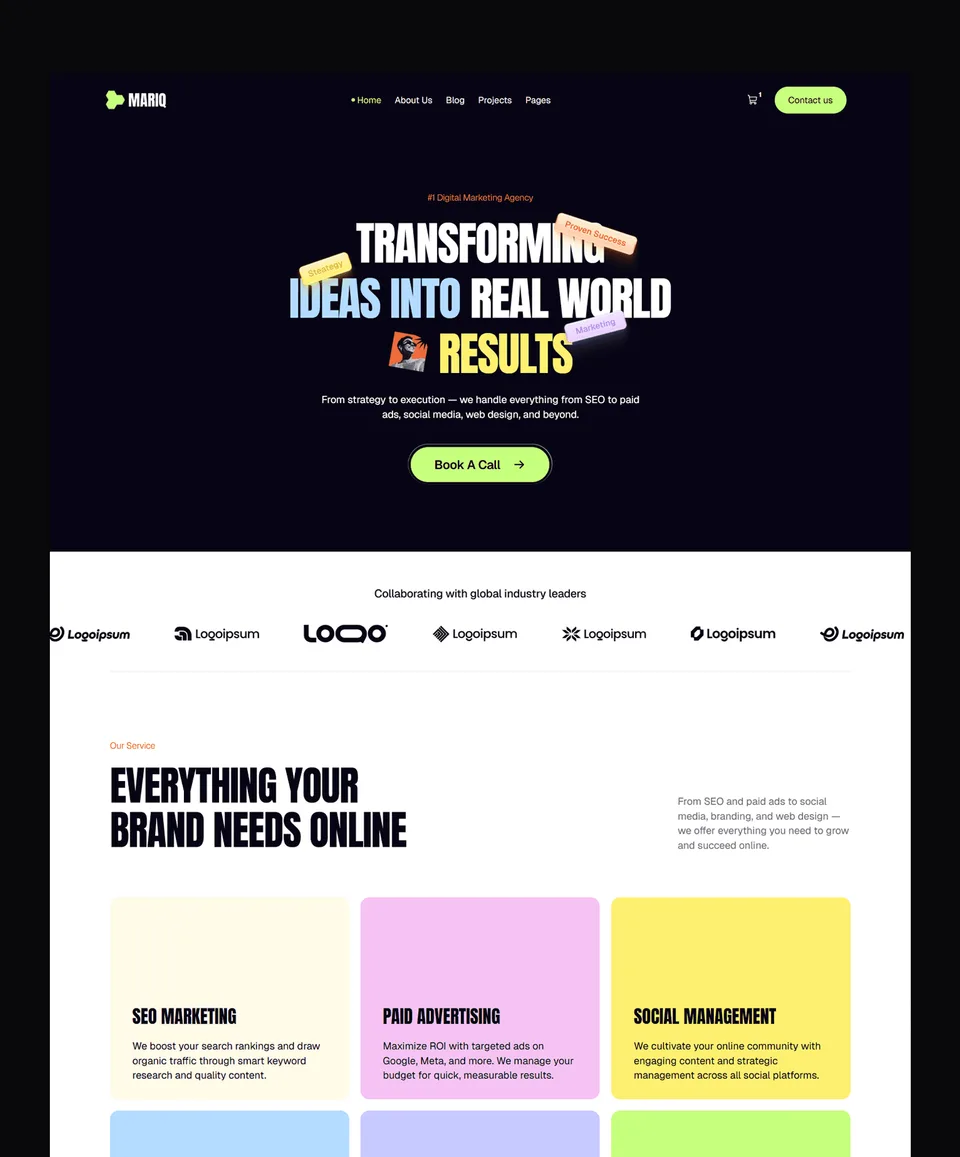
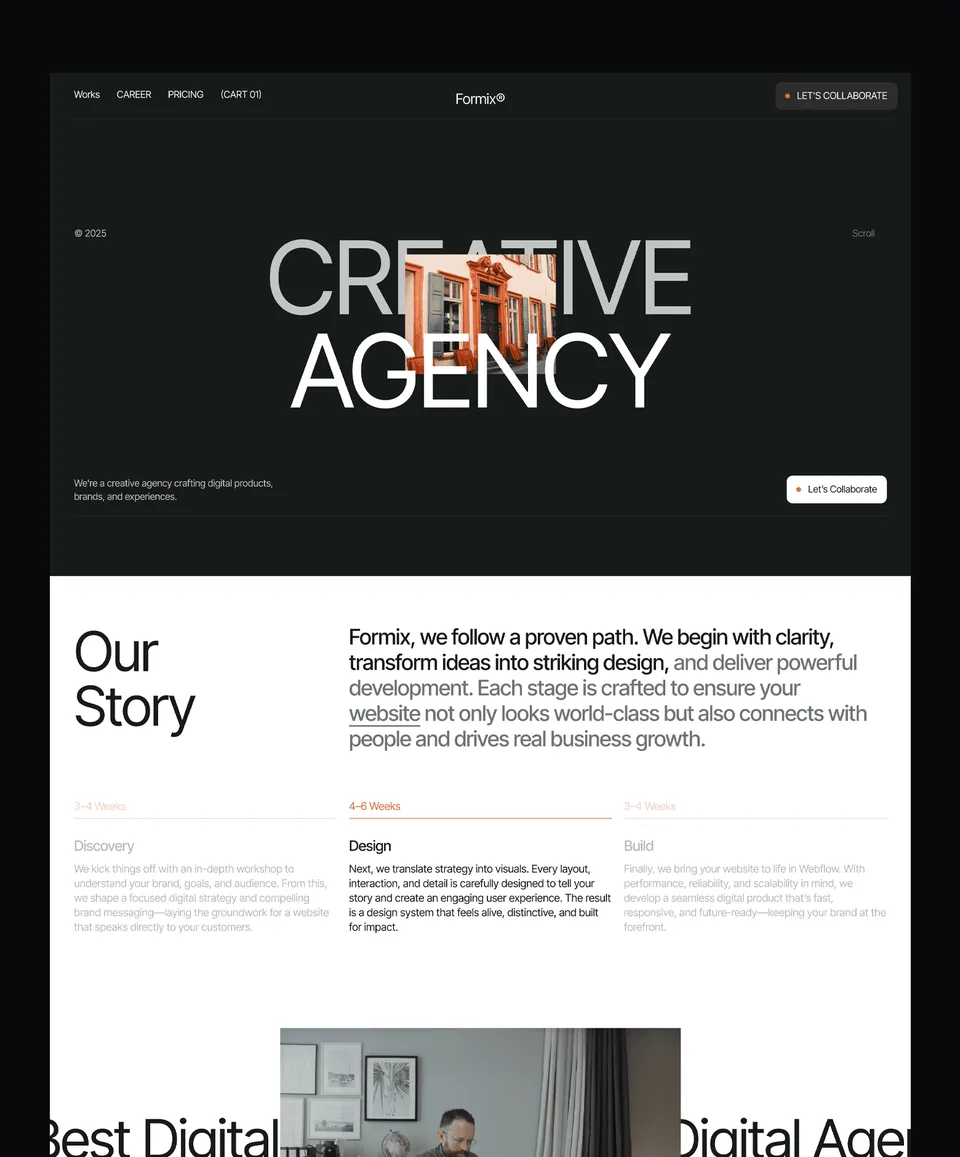
Starting from a template saves the slowest part of a CMS build: designing the collection page, connecting every field and styling the lists. These three are Waida Studio templates, so we made them; each ships with its collections built and connected in the Webflow version.
Zelda: four collections, free

Zelda is a dark, 13-page agency and studio template with four CMS collections: Work, Blog, Pricing and Change Log. It's free on Webflow with a free Waida account, Figma file included, which makes it a good way to see how a multi-collection site is wired before you build your own.
Medonix: a blog collection for a SaaS or health product, free

Medonix is a 13-page healthcare SaaS template with a Blog collection, plus pricing, compliance and case study pages. It's also free on Webflow with a free Waida account, Figma file included.
Trenox: blog, pricing and integrations, $129

Trenox is a 22-page fintech SaaS template with three collections: Blog, Pricing and Integration. It costs $129 on Webflow, or comes with every other Webflow template in the $159 Webflow Bundle. Its Figma file is sold separately.
Webflow templates to start from
All 36 Webflow templates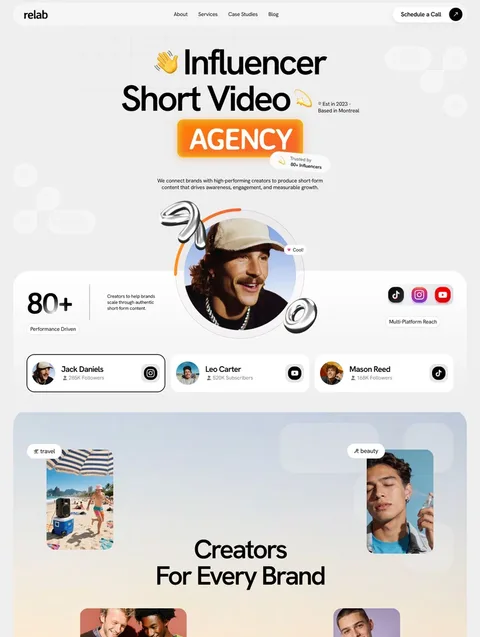


Frequently asked questions
Is the Webflow CMS free?
Yes, for building and testing. The free Starter plan includes 20 collections and 50 items on a webflow.io address. To publish a CMS site on your own domain you need the Premium site plan, $25 a month billed yearly.
Does the Webflow Basic plan include the CMS?
No. Webflow describes Basic, at $15 a month billed yearly, as a plan for simple sites that don't need a CMS. It allows 300 static pages but no collections.
How many items can the Webflow CMS hold?
Premium allows 20,000 CMS items across 40 collections. The free Starter plan allows 50 items, and Webflow's Team and Enterprise plans can add more items for a separate fee.
How many items can a Webflow collection list show?
A collection list shows up to 100 items at once. Turn on pagination to show more across several pages, or add a second list that skips the first 100 items.
Can clients edit Webflow CMS content without a designer?
Yes. Clients can use client seats in Starter, Freelancer and Agency Workspaces to edit and publish content, and teams can buy Limited seats at $15 a month per seat, billed yearly.
Can I export Webflow CMS content?
Yes, as CSV. Every collection can be exported to a CSV file or read through the CMS API, but Webflow's code export doesn't include CMS items or collection pages.
The Webflow CMS is collections, fields, one template page per collection and lists that pull items anywhere on the site. Build and test on the free Starter plan, then move to Premium at $25 a month billed yearly when the site needs a custom domain and more than 50 items, because Basic has no CMS. Plan around the 100-item list limit and three-level nesting before you design.
To skip the setup, browse our Webflow templates: 36 in total, 2 free with a free account and the rest from $59 to $129, or $159 for all of them in the Webflow Bundle. Every licence covers unlimited personal, commercial and client projects under our licence terms, and our customisation service can set up your content from $499.

More from Kazi
Related articles
More in Webflow
Webflow Website Examples: 20 Real Sites Built with Webflow in 2026
Twenty real company websites that run on Webflow, each checked in its live page source, grouped by type with what each one does well.
Best Free Webflow Templates: 10 Picks for 2026
Ten free Webflow templates checked on their own pages today, with who each suits and what the Webflow site plan costs once you publish.
Webflow Tutorial: How to Build Your First Site in 2026
A step-by-step Webflow tutorial for beginners, from a free account and a template to a published site on your own domain.