Figma to Webflow: Plugin, Workflow and Limits in 2026
How to move a Figma design into Webflow with Webflow's own plugin and app: what syncs, what to prepare, the limits, and what publishing costs.

To move a design from Figma to Webflow, use Webflow's own Figma to Webflow plugin: select auto layout frames in Figma, sync them, then import them with the Figma to Webflow app or paste them into the Designer. Layers become elements and components, variables become Webflow variables, and text styles become classes. Interactions, CMS, variants and most responsive work you finish in Webflow.
What the Figma to Webflow Plugin Does
The plugin turns Figma auto layout frames into Webflow elements built on flexbox, and it carries your design system across with them. It has three tabs, according to Webflow's help article on the plugin and app: Layers, Variables and Styles.
- Layers exports Figma frames and components to Webflow components and elements.
- Variables exports Figma variable collections to Webflow variables.
- Styles exports Figma text and effect styles to Webflow classes.
It is listed on the Figma Community as Figma to Webflow (HTML, CSS and Website), published by Webflow Labs. It works with a companion app inside Webflow: the plugin sends a sync, and the app is where you review it and choose what to import. Webflow's feature page describes the result as clean HTML and CSS in Webflow, and says the app connects to the plugin through the Designer APIs.
There is also a plainer route. You can copy a layer in the plugin and paste it into the Webflow Designer. Webflow's help article notes that this pastes components as plain elements, so use a sync when you want a real Webflow component.
Prepare the Figma File Before You Sync
The plugin only moves layers that use auto layout, so the real work happens in Figma first. Webflow's help article says layers must have auto layout applied to sync, and the plugin offers a suggest auto layout option for frames that lack it. A file built on auto layout imports cleanly; a file of absolutely positioned shapes does not import at all.
- Auto layout everywhere. Every section, row and card needs auto layout, because it is what the plugin translates into flexbox.
- Name layers as you would name classes. Webflow says every Figma layer name becomes a class. "Frame 482" becomes a class called Frame 482; "Pricing card" becomes a class you will want to reuse.
- Use the names that set HTML tags. A layer named "heading" becomes an H1, "button" becomes a link, and "text", "paragraph" or "description" becomes a paragraph. You can also set tags by hand in the plugin.
- Upload custom fonts to Webflow first. Webflow warns that custom fonts are lost in the sync if they are not already on the site.
- One section at a time. For large pages, Webflow recommends syncing a few components or sections at a time rather than the whole page.
Do the installing in Chrome or the Figma desktop app. Webflow's help article says the plugin is not supported in Safari.
How to Move a Design from Figma to Webflow, Step by Step
Install and authorise the plugin once, then each section is a select, sync and import. These steps follow Webflow's help article as it reads today, and they assume you are signed in to both Figma and Webflow.
- Open the plugin's Figma Community page, click Open in, and choose a Figma file.
- Click Run, then Next and Connect, and authorise the Webflow sites or Workspaces you want to use.
- Back in Figma, click Get started and pick the Webflow site at the top of the plugin.
- On the Layers tab, select one or more auto layout frames or components, click Continue, then Sync to Webflow.
- In Webflow, open the Figma to Webflow app from the Apps panel and click the most recent sync.
- Choose which components, elements and variables to import, then click Import selected items.
- Repeat for the Variables tab (one collection and one mode per sync) and the Styles tab.
Images and vector icons from synced layers are uploaded to the site's Assets panel. Webflow's help article warns that they only appear there if the right site is selected in the plugin's site dropdown, which is the first thing to check when an image goes missing.
When you paste rather than sync, watch for class name clashes. If the site already has a class called Button and you paste a Figma layer named Button, the default paste creates a new class (Button 2). Ctrl+Shift+V (Cmd+Shift+V on a Mac) reuses the existing class, and Ctrl+Alt+V (Cmd+Option+V) overwrites it with the Figma styles.
What Syncs and What You Rebuild in Webflow
The plugin moves structure, styles, variables and images. It does not move behaviour: interactions, CMS content, forms and component variants are built in Webflow after the import. The table sums up each part of a site, based on Webflow's help article and feature page.
Part of the site | After the sync | Where you finish it |
|---|---|---|
Auto layout frames | Webflow elements with flexbox layout | Check spacing and widths in the Designer |
Figma components | Webflow components (via sync); plain elements (via paste) | Add component properties in Webflow |
Variables | Webflow variables, one collection and mode per sync | Bind them to classes where needed |
Text and effect styles | Webflow classes, with an optional prefix | Merge duplicates into a class system |
Layer names | Class names | Rename anything that came from a default Figma name |
Images and icons | Uploaded to the Assets panel | Resize and compress, add alt text |
Custom fonts | Lost, unless uploaded to Webflow first | Upload fonts before syncing |
Variants (state, style, responsive) | Not supported; separate frames become separate components | Rebuild states with classes and interactions |
Interactions, CMS, forms | Not part of the sync | Built in Webflow |
The variants line is the one that catches people out. Webflow's FAQ on the help page says responsive, state and style variants are not supported, so a button with hover and pressed variants in Figma arrives as separate elements. Build one button in Webflow and give it a hover state instead.
Responsive Layouts: What the Plugin Handles and What It Doesn't
The plugin can only decide when a horizontal row stacks vertically. For each layer you choose a breakpoint: tablet (991px to 767px), mobile landscape (767px to 478px), mobile portrait (478px to 0px) or not responsive. Everything else about the tablet and phone layouts is set in Webflow.
Two limits apply. Webflow's help article says you cannot set responsiveness on a layer narrower than 250px or one that is already stacked vertically. And it suggests using wrap plus minimum and maximum widths in Figma, so rows reflow on their own before you touch Webflow's breakpoints. After every import, preview the page at each breakpoint in the Designer; whatever breaks is your to-do list for that section.
When Syncing Stops: Conflicts and Removing the Plugin
A sync keeps Figma and Webflow linked, so a later change in Figma can clash with the Webflow version. When an element exists in Webflow but has been removed in Figma, the app offers three choices: accept the change (the element is removed in Webflow), create a new component (keeps the Webflow version but ends syncing), or revert the change in Figma.
One workable pattern is to sync while the design system is still settling, then treat Webflow as the source of truth once the build starts. To disconnect, revoke the Webflow from Figma to Site application under Authorized applications in your Workspace settings or Account settings, as the help article describes.
What It Costs to Publish the Site on Webflow
Syncing and designing cost nothing extra; you pay Webflow when the site goes live on your own domain. Webflow's pricing page lists these site plans today, with prices billed yearly.
Webflow site plan | Price (billed yearly) | What matters for an imported site |
|---|---|---|
Starter | Free | webflow.io domain, 2 static pages, limited CMS, 1 GB bandwidth |
Basic | $15/mo | Custom domain, 300 static pages, 10 GB bandwidth, no CMS |
Premium | $25/mo | Everything in Basic plus the Webflow CMS |
The Starter limit of 2 static pages is the one to plan around: it is enough to test an import, not to launch a multi-page site. Our Webflow pricing guide covers the plans in more detail, and Webflow vs Framer compares the two builders if you have not chosen one yet.
Skip the Conversion: Start from a Webflow Template with Its Figma File
If the site isn't designed yet, starting from a built Webflow template skips the conversion entirely. The classes, breakpoints and components already exist, and a matching Figma file lets you plan changes in Figma before making them in Webflow. The three below are Waida Studio's own.
Our own templates: the three below are Waida Studio templates; we made them. Figma files are sold separately from templates ($19 each, or every Figma file for $49 in the Figma bundle), except Zelda's and Medonix's, which are free.
Zelda is a dark design-agency template with 13 pages. The Webflow version and its Figma file are both free with a free Waida account; sign in, then clone it into your Webflow Workspace.

Medonix is a medical SaaS startup template with 13 pages, also free on Webflow with a free Waida account, Figma file included.

Mariq is a marketing-agency template with 11 pages. The Webflow template is $79, and its Figma file is $19 on its own.

All 34 Webflow templates in the catalogue are on the Webflow templates page, and every design's file is on the Figma templates page. If you are moving the same design to Framer instead, our guide to Figma to Framer covers Framer's plugin.
Webflow templates to start from
All 34 Webflow templates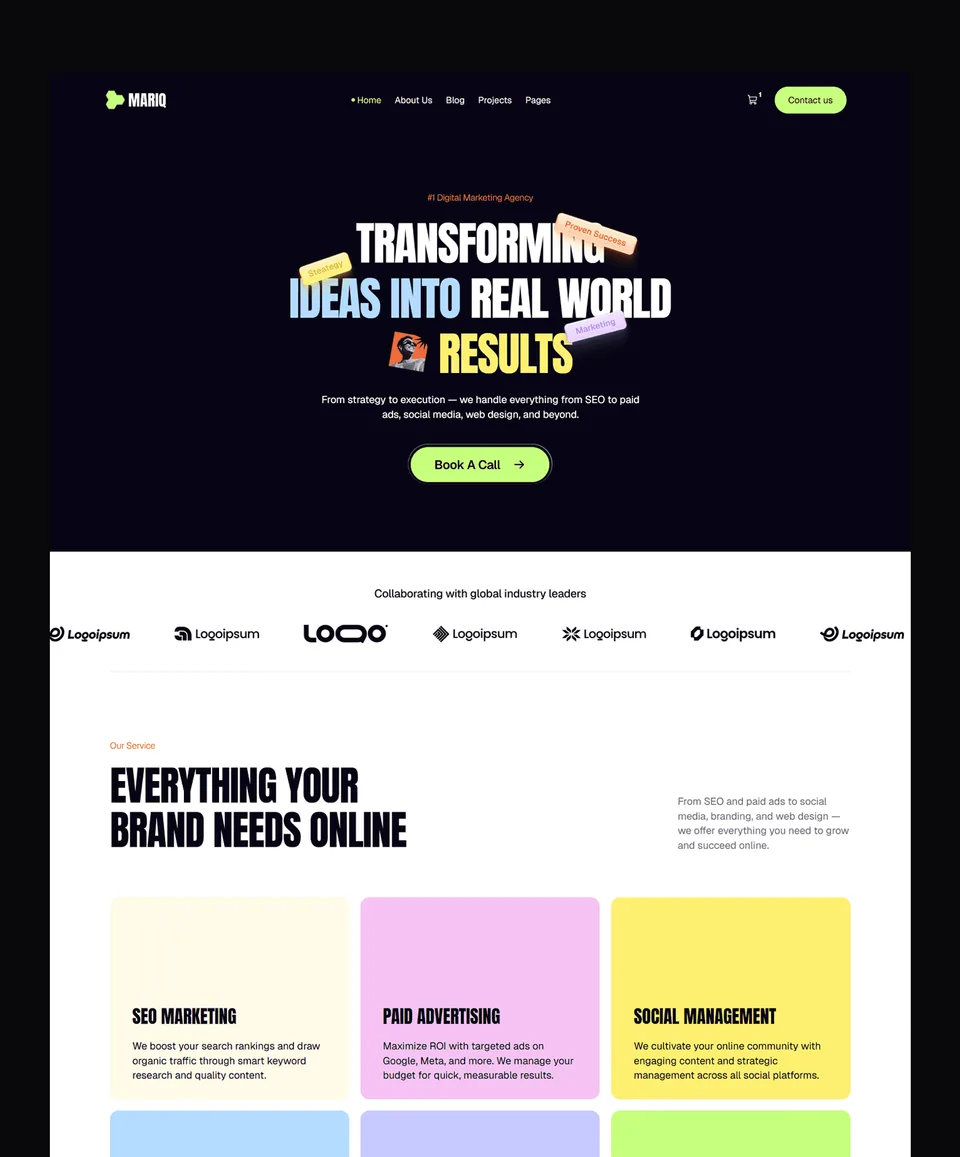




Frequently asked questions
Is the Figma to Webflow plugin free?
The plugin is published by Webflow Labs on the Figma Community and installs from there; Webflow's help article lists no separate charge for it. You still need a paid Webflow site plan to publish on a custom domain.
Why won't my Figma layer sync to Webflow?
The most common reason is missing auto layout. Webflow's help article says layers must use auto layout to sync or paste, and the plugin can suggest auto layout for a frame that lacks it.
Does Figma to Webflow keep component variants?
No. Webflow's help article says responsive, state and style variants are not supported, so separate Figma frames become separate Webflow components or elements. Rebuild hover and other states with classes in Webflow.
Do Figma layer names matter when moving to Webflow?
Yes. Every Figma layer name becomes a Webflow class, and names such as heading, button and paragraph set the HTML tag. Rename default layers like Frame 12 before syncing to avoid a messy class list.
Can I use the Figma to Webflow plugin in Safari?
No. Webflow's help article says the plugin is not currently supported in Safari and recommends Chrome or the Figma desktop app instead.
Do Waida Webflow templates include the Figma file?
Only Zelda and Medonix include their Figma files for free. Other Figma files are sold separately, $19 each or $49 for every file in the Figma bundle.
Figma to Webflow works best as a design-system bridge: auto layout frames become flexbox elements, variables become Webflow variables, and text styles become classes. Prepare the file with auto layout, sensible layer names and fonts uploaded to Webflow, sync one section at a time, and expect to build variants, interactions, CMS and most responsive behaviour in Webflow itself.
If you would rather start from a finished build, browse the Webflow templates: Zelda and Medonix are free with a Waida account, the rest are $59 to $129, and the whole set is $159 in the Webflow bundle. To have a template adapted for you, template customisation is $499 with 7-day delivery.

More from Kazi
Related articles
More in Webflow
Webflow Pricing in 2026: Site Plans, Workspaces and Real Costs
Every Webflow plan and add-on in 2026, the difference between Site and Workspace plans, and what a site built from a template really costs in its first year.

Best Webflow Portfolio Templates: 12 Picks for Designers, Photographers and Studios in 2026
Twelve Webflow portfolio templates for photographers, filmmakers, designers and studios: nine of ours and three from independent designers, with who each one suits.

Church Website Design: What a Church Site Needs in 2026
What a church website needs in 2026: service times on the first screen, a plan-your-visit page, a sermon archive, licensed livestreams and a short giving path.