Framer Animations: How Effects, Scroll and Variants Work in 2026
A practical guide to Framer animations in 2026: which effect to use, how scroll and Variant animations work, page transitions, and how to keep motion accessible.

Framer animations come in three layers. Single-layer effects (appear, hover, press, loop, drag and text) need no setup beyond the Effects section of the Properties panel. Scroll effects tie motion to the page position. Component Variants handle anything with clear states, such as a menu that opens. Pick the lightest layer that does the job.
This guide walks through each layer with the settings Framer exposes, when to use which, how page transitions work, and the accessibility rules that apply to moving content. If you're new to the editor itself, start with our Framer tutorial for beginners and come back for the motion.
How Framer Animations Work
Every animation in Framer moves a layer between a starting state and its final design. You set what starts the motion (the trigger), how the layer starts (the Enter state) and how it travels (the transition). Framer's animations overview groups the tools into layer effects, text effects, scroll effects and Component Variants.
Underneath, Framer's effects run on Motion, the open-source animation library that used to be called Framer Motion. Framer's help article on how animations and effects work says Motion uses hardware acceleration where it can, and that code components and code overrides get full access to the Motion for React API. You only need code for motion the built-in effects can't express.
That naming history explains a confusing search result. Many pages about "Framer animations" are really about the React library, which the Motion docs now describe as "Motion for React (previously Framer Motion)". If a tutorial starts by installing a package, it is about the library, not the Framer site builder.
Framer Animation Types at a Glance
Framer has many ways to animate, but each one answers a different question: is the motion started by the page loading, the visitor scrolling, the pointer, or a state change? The table below maps each tool to its trigger and its best use.
Tool | What starts it | Best for |
|---|---|---|
Appear effect | The layer becoming visible, or a scroll trigger | Entrances: fade, slide, scale or flip into place |
Hover and press effects | Pointer over or pressing the layer | Button and card feedback |
Loop effect | Nothing: it repeats on its own | Spinning badges, floating shapes, pulsing dots |
Drag effect | The visitor grabbing the layer | Playful canvases, draggable stickers |
Text effect | Appear or scroll trigger | Headings that build by character, word or line |
Scroll transform | Scroll position between two trigger points | Gradual scale, position, rotation or opacity changes |
Scroll speed | Scrolling | Parallax between foreground and background |
Component Variants | Click, mouse enter, mouse leave or a scroll point | Menus, tabs, accordions, expanding cards |
Page transition | Navigating between pages | Consistent movement from one route to the next |
Code override or component | Whatever your code says | Motion the built-in effects can't express |
Layer Effects: Appear, Hover, Press, Loop and Drag
Layer effects are the quickest Framer animations: select a layer, open the Effects section and add one. Use them when one element needs motion and there is no state to manage. The appear effect does most of the work on a typical marketing site, because almost every section has something that should arrive rather than sit there.
Appear effect
Framer's Appear Effect lesson lists three main options. Trigger decides what starts it, Preset applies a ready-made animation (Fade, Scale, Flip or Slide In), and Enter sets the starting Opacity, Scale, Rotation, Skew and Offset. The layer then animates into the design you built on the canvas.
The trigger choice matters more than the preset:
- On Appear runs when the layer first becomes visible. Use it above the fold.
- On Scroll runs based on scroll direction, as visitors move down or up.
- Layer in View waits until the top, centre or bottom of the layer reaches the trigger point.
- Section in View uses a section's position, so several effects can respond to the same part of the page.
- Replay makes a scroll-based effect run again each time the trigger happens.
For a staggered entrance, give each element its own effect and offset the delays, rather than animating the parent Stack. Framer's built-in Agent can apply a staggered appear effect to a section for you, and it uses the native effects, so every setting stays editable.
Hover, press, loop and drag
Hover and press effects change a small set of properties, such as fill, scale, opacity or shadow, while the pointer is over or pressing a layer. Keep the change small and avoid anything that shifts nearby layout. Hover does nothing on a phone, so the element must still read as clickable without it.
The loop effect repeats rotation, position, scale or opacity with its own duration, direction and easing. The drag effect makes a layer movable in the browser, with a direction, boundaries and momentum you set. Both are decorative by nature, so keep them away from text and controls.
Transitions: Spring or Easing
The transition decides how a layer travels, and it's where most animations go from cheap to polished. Framer offers two families. Spring is the default and gives a natural, slightly bouncy motion. Easing follows a preset curve or a custom Bezier curve you draw, with a set time and delay.
Springs have two modes, according to the Appear Effect lesson. Time sets duration, bounce and delay, which is easier to reason about. Physics sets stiffness, damping, mass and delay, which gives finer control over how the motion settles.
Framer's own transitions and easing lesson recommends ease-out for most entrances, ease-in for exits, and spring or bounce only when the element can carry that character. Keep transitions consistent across a page: if every card enters the same way, the site feels designed rather than decorated.
Scroll Animations: Transforms, Parallax and Variants
Scroll animations in Framer come in three kinds. An appear effect with a scroll trigger plays once at a set point. A scroll transform maps the scroll position to a property, so the motion follows the visitor's thumb. Scroll speed creates parallax. Choose a transform when the movement should be gradual and reversible.
With a scroll transform, you set start and end trigger points around a section and map that range to position, scale, rotation or opacity. Scroll back up and the layer reverses. It suits a hero image that shrinks into a card, or a heading that drifts as you read past it.
Scroll speed moves foreground and background layers at different rates. Framer advises small positive or negative values and a Frame that clips overflow, so shifted images don't reveal empty edges. Clipping also keeps a scaled image inside its original bounds.
For a bigger change, such as a navigation bar that turns solid after the hero, build the states as Component Variants and switch between them on scroll at a chosen trigger point. Test it while resizing the window, because the trigger position moves when text wraps.
Component Variants and Interactions
Use Component Variants when an interaction has clear states: open and closed, selected and unselected, collapsed and expanded. You design each state as a Variant, then connect them with click, mouse enter or mouse leave triggers. Framer animates every matching property between the two states, such as position, size and opacity.
The Component interactions lesson gives the rule that makes this work: keep layer names and structure aligned between Variants, so Framer can match each layer to its counterpart. Rename a layer in one Variant and it will cut instead of animate. If the idea of reusable Framer components is new, our glossary explains them.
Variants are also where microinteractions live: a menu icon that turns into a cross, a pricing toggle that slides, a tab that underlines itself. They take more setup than a layer effect, but they are reusable, so you build the behaviour once and every instance inherits it.
Text Effects, Tickers and Cursors
Text effects animate copy by character, word, line or as one element, with their own trigger, delay and transition. They are the fastest way to give a hero heading presence. Framer's text effects lesson warns to test long headings at narrow breakpoints and reduce the stagger if the motion slows reading.
Two more tools show up on most motion-heavy sites. The Ticker component scrolls a row of logos or words continuously, and Framer's ticker lesson fades its edges by placing it in a clipping Frame with a gradient mask. Custom cursors swap the arrow for your own layer or Component; align the hotspot with the visual point so clicks land where visitors expect.
Page Transitions Between Routes
Page transitions animate the move from one page to the next. You choose the transition and set its incoming and outgoing states, duration and easing, as Framer's page transition lesson describes. Keep them short, so the next page feels responsive, and apply the same one to routes in the same navigation flow.
Elements that appear on both pages, such as a project thumbnail that becomes the case study header, can carry across instead of leaving and coming back. Framer's lesson on persistent animations between pages does this by giving matching layers on the two pages the same transition identity. Test back and forward buttons and direct page loads, not just clicks.
Accessibility and Performance
Framer has a project-wide reduced motion setting in Site Settings, on the General tab. Framer's troubleshooting article says that when it is active and a visitor's device asks for reduced motion, animations are limited to opacity changes. Leave it on unless you have a strong reason not to.
Visitors turn on that preference in their operating system, and browsers report it through the prefers-reduced-motion media feature. Framer's reduced motion article says the setting covers parallax, transform and layout animations, and its FAQ adds movement animations and custom cursors. If an animation "doesn't work" on your phone, check that preference and Low Power Mode before rebuilding anything.
Two accessibility rules apply directly to Framer animations:
- Pause, Stop, Hide (WCAG 2.2.2, Level A): moving content that starts by itself, lasts more than five seconds and sits alongside other content needs a way to pause, stop or hide it, per W3C's Understanding 2.2.2. Endless tickers and loops are the usual culprits.
- Animation from Interactions (WCAG 2.3.3, Level AAA): motion triggered by interaction, such as scrolling, should be possible to disable unless it is essential, per W3C's Understanding 2.3.3. Framer's reduced motion setting is how you meet it.
For speed, prefer the properties browsers animate cheaply. Google's web.dev animations guide advises sticking to transform and opacity and avoiding properties that trigger layout or paint. In Framer terms, offset, scale, rotation and opacity are safe; animating width, height or blur on large layers is where pages start to stutter. Our Framer SEO guide covers the wider performance picture.
Check before you publish | Why |
|---|---|
Reduced motion setting is on | Visitors who ask for less motion get opacity fades only |
Content is readable before the animation runs | Slow devices and blocked scripts still show the page |
Tickers and loops can be paused, or stop within five seconds | WCAG 2.2.2 Pause, Stop, Hide |
Hover states have a tap or focus equivalent | Phones and keyboards have no hover |
Scroll triggers tested at every breakpoint | Trigger points move when text wraps |
Animated layers use offset, scale, rotation or opacity | Cheap for the browser to animate |
Back, forward and direct loads tested with page transitions | Transitions behave differently from clicks |
Framer Templates With Motion Built In
The fastest way to learn Framer animations is to open a site that already uses them and inspect each layer's effects. These four are ours: Waida Studio templates, free on Framer with a free Waida account, and each one leans on motion in a different way. For motion on sites we didn't make, see our Framer website examples.
Minux

A dark, monochrome template for creative studios and branding agencies, with running ruler marquees and calm, continuous motion. It is a good study in looping motion that stays in the background instead of competing with the work.
Avande

An editorial, technical template for AI automation agencies, with animated dashboard gauges and letter-by-letter titles. Open it to see text effects used on headings without slowing the reading.
Relab

A bright, playful template for influencer marketing agencies and short-form video studios, with motion everywhere. It shows how far you can push movement when the brand is loud by design.
Finos

A light, calm template for personal finance and budgeting apps, with product screens in phone frames and a wallet balance that rolls over as you watch. It is the restrained end of the scale: motion used to explain a product, not decorate it.
Framer templates to start from
All 39 Framer templates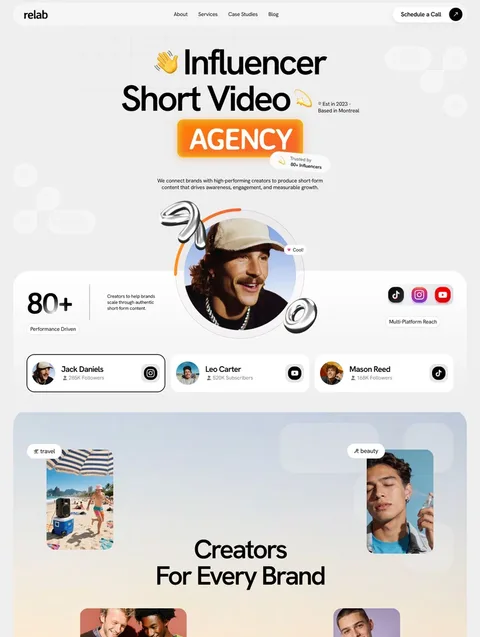




Frequently asked questions
How do I add an animation in Framer?
Select a layer, open the Effects section of the Properties panel and add an effect such as Appear, Hover, Press, Loop or Drag. Choose a trigger, set the starting state and pick a spring or easing transition.
Is Framer Motion the same as Framer animations?
No. Framer Motion was the old name of Motion, an open-source React animation library. Framer's built-in effects run on it, but you use them in the editor without code. Code components and overrides can call Motion directly.
How do I make scroll animations in Framer?
Use an Appear effect with an On Scroll, Layer in View or Section in View trigger for animations that play at a point. Use a scroll transform to tie scale, position, rotation or opacity to the scroll range, or Scroll Speed for parallax.
Why are my Framer animations not working?
Check whether the visitor's device has reduced motion or Low Power Mode turned on. With Framer's reduced motion setting active, those visitors only see opacity changes. Also test the published site, not just the canvas, at every breakpoint.
Do Framer animations slow down a website?
They can if you animate expensive properties on large layers. Offset, scale, rotation and opacity are cheap for browsers to animate; width, height and blur are not. Use fewer, purposeful effects and test the published page on a phone.
Do Framer animations respect reduced motion?
Yes, through a project setting in Site Settings on the General tab. When it is on and a visitor's device prefers reduced motion, Framer limits animations to opacity changes and turns off parallax, transform and layout animations.
Framer animations reward restraint. Start with appear effects and a consistent spring, add scroll transforms where movement should follow the reader, and reach for Component Variants only when something genuinely has states. Keep the reduced motion setting on, give tickers a way to stop, and animate offset, scale, rotation and opacity rather than layout.
If you'd rather start from motion that already works, browse our free Framer templates: 24 of our 39 Framer templates are free with a free Waida account, and the rest cost $49 to $99, or $159 for all of them in the Framer Bundle. If you want the motion tuned to your brand, our customisation service can do it for you.

More from Kazi
Related articles
More in Framer
Framer Forms: Contact Forms, Waitlists and Integrations in 2026
How Framer forms work in 2026: the native Form Builder, where submissions go, webhooks, waitlist signups, spam protection, tracking and when a plugin is worth it.
Framer Tutorial: How to Build Your First Site in 2026
A step-by-step Framer tutorial for beginners, from a free account and a remixed template to a published site on your own domain.
Framer CMS: How It Works, Limits and Plans in 2026
How the Framer CMS works in 2026: collections, field types, detail pages, filters, plan limits and how it compares with the Webflow CMS.