App Landing Page: What It Needs, with 8 Real Examples (2026)
What a mobile app landing page needs, how to place App Store and Google Play badges correctly, and eight real app sites checked today.
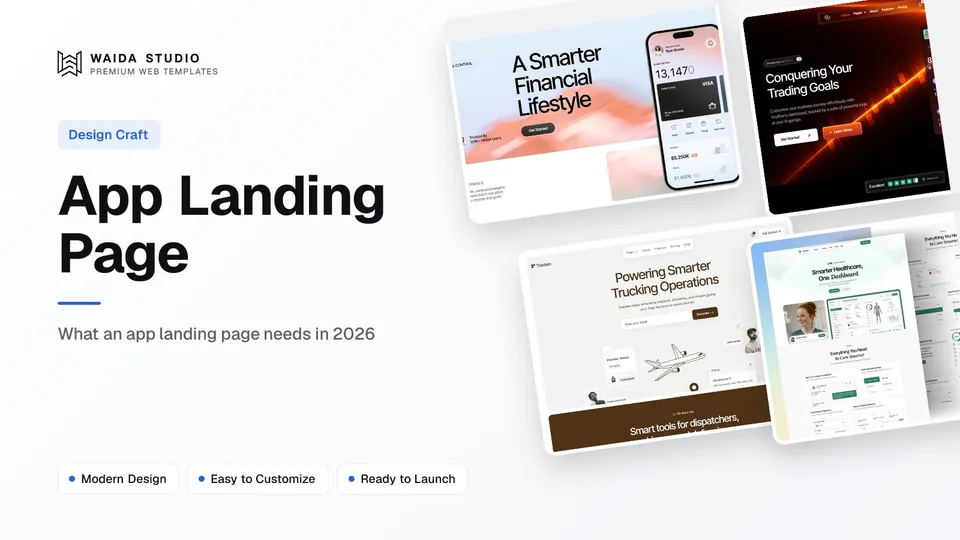
An app landing page has one job: get a visitor from "what is this?" to the right store listing. It needs a one-line promise, real app screens, official store badges placed to Apple and Google rules, one proof point, and a fallback for desktop visitors, such as a web version or a QR code.
This guide covers each part, then looks at eight real app sites we checked on 25 October 2026. A SaaS product sold in the browser is a different page; for that, read our guide to the SaaS landing page.
What Makes an App Landing Page Different
An app landing page sells a download, not a sign-up form. The conversion happens somewhere else, on the App Store or Google Play, so the page has to hand the visitor over cleanly. A visitor on a laptop also can't install a phone app, which means the page needs a plan for desktop traffic too.
That changes a few things compared with a general landing page design:
- The call to action is a store badge, not a button you can style freely. Apple and Google both publish rules for how their badges look.
- The product is a phone screen. Screens in a device frame do the explaining that feature copy does on a web product.
- Proof often comes from the store: ratings, Editors' Choice, Apple Design Awards. Visitors recognise these at a glance.
- Desktop needs a path. A web app, an email link, or a QR code turns a laptop visit into an install.
The Sections an App Landing Page Needs
Most good app pages use the same six sections, in roughly this order. You can drop one if your app is simple, but the hero and the download block are not optional.
Section | What goes in it | Common mistake |
|---|---|---|
Hero | One-line promise, a phone screen of the real app, store badges | A slogan that doesn't say what the app does |
Proof strip | Store rating, awards, press names | Logos with no source or date |
Feature screens | Three to five screens, one idea each, a short caption | Every feature at once in one long list |
How it works | Two to four steps from download to the first useful moment | Steps that describe the UI instead of the outcome |
Pricing or plan note | Free, trial, or subscription, said plainly | Hiding the price until after install |
Final download block | Badges again, plus a QR code or web link for desktop | Ending on a footer with no way to install |
If you are building the page yourself, our step-by-step guide on how to make a landing page covers the writing order, and the same order works here.
How to Place App Store and Google Play Badges
Use the official badge artwork from each company, don't modify it, give both badges the same height, and put the App Store badge first. That combination satisfies both sets of guidelines, which we read on Apple's and Google's own pages today.
Rule | Apple (App Store badge) | Google (Google Play badge) |
|---|---|---|
Artwork | Only the artwork Apple provides; don't modify, angle or animate it | Download the latest version; don't change colour or rearrange elements |
Minimum on-screen size | 40 px tall | 28 px tall |
Clear space | One-quarter of the badge height | One-quarter of the badge height |
With other store badges | Use the black badge and place it first | Same size or larger than the other badges |
How many | One App Store badge per layout | Not specified |
Sources: Apple's App Store marketing guidelines and Google Play's badge guidelines. Apple also asks that the badge sit in a subordinate position to the main image or message, so the headline and the phone screen lead, and the badge follows.
Smart App Banners: The One Line of Code Worth Adding
A Smart App Banner is a small bar Safari on iOS shows at the top of your page, offering to open or download your app. You add it with one meta tag in the page head, and iOS decides whether to show it.
The tag is `<meta name="apple-itunes-app" content="app-id=YOUR_ID">`. According to Apple's Smart App Banner documentation, `app-id` is required and an optional `app-argument` URL can send someone who already has the app to the matching screen inside it. If the app is installed, tapping the banner opens it.
Apple's page lists a few limits worth knowing before you test: the banner doesn't appear if the device can't run your app or the app isn't available in the visitor's region, it can't be shown inside a frame, and it doesn't appear in the iOS simulator. Test on a real iPhone.
Four of the eight sites below use it: Overcast, Opal, Structured and Gentler Streak all had the tag in their home page HTML today.
8 App Landing Page Examples, Checked Today
Each site below loaded on 25 October 2026, and every detail quoted comes from its home page as fetched that day. The "Built with" column comes from the page's own markers: a Framer generator tag, Webflow's data-wf-site attribute, or Next.js asset paths. For web products, see our wider list of landing page examples.
App | What the page does well | Smart App Banner | Built with |
|---|---|---|---|
Live-looking flight notifications as the product demo | No | Framer | |
Short one-page site with a founder's note | Yes | No builder tag | |
Rating and launch video in the hero | Yes | Webflow | |
Usage numbers right under the headline | Yes | Next.js (Vercel) | |
Awards wall straight after the App Store badge | Yes | Framer | |
Works on the web first, app second | No | Framer | |
Sample transactions show the app working | No | Framer | |
Platform tabs and the free vs Pro split on the home page | No | Hugo |
Flighty: the notifications are the pitch
Flighty opens with "Get the truth when you travel" and then shows a stack of the alerts the app sends: a gate change, a 45-minute delay, a baggage belt. You understand the product before you read a feature list. Apple Design Award and App of the Year badges sit under the hero, followed by short press quotes.
Overcast: small, honest and complete
Overcast is a single short page: two features (Smart Speed and Voice Boost), a note from the developer ("It's just me here — no big company or investors"), and a plain explanation that most features are free with small ads and an annual subscription adds extras. It proves an app page doesn't need ten sections.
Opal: proof in the first screen
Opal pairs the headline "Attention on autopilot" with a "Try for free" button and its store rating ("4.8 · 150k+ App Ratings", as shown on its page) right in the hero, then a launch video. Each named feature (Opal Score, Focus Rules, Focus Timer) gets its own short block.
Structured: numbers under the headline
Structured leads with "your all in one day planner" and a "Start planning for free!" button, then a row of its own usage figures, such as 15M+ downloads and 30+ languages. The page then walks through phone, computer and watch, which answers the "does it work on my device?" question early.
Gentler Streak: awards as the second line
Gentler Streak puts a "Download on the App Store" badge under a two-sentence pitch, then lists its Apple recognition: App of the Year (2022, Apple Watch), Apple Design Awards and Editors' Choice. The rest of the page explains one idea per section, such as streaks that "celebrate rest".
Partiful: the web does the work
Partiful is an app that doesn't force the app. "Create event" works in the browser, guests RSVP from a link ("No app needed"), and "Get the app" sits beside it as the second option. If your app has a useful web version, this is the model: let people get value first.
Copilot Money: the app working, not a screenshot
Copilot Money shows sample transactions being categorised (Netflix, groceries, coffee) and a budget rollover, so the visitor sees what the app does with their money. It lists the platforms plainly: "Available on iPhone, iPad, Mac, and Web".
Bear: platforms and price up front
Bear has Mac, iPhone and iPad tabs at the top, its Apple awards right below, and a Free vs Pro comparison on the home page itself. Visitors who want to know "which devices?" and "what does it cost?" get both answers without leaving the page.
Using a Template for Your App Landing Page
A template saves you the layout work: hero, feature rows, pricing and FAQ are already built and responsive, so you spend your time on the screens and copy. These four are Waida Studio templates, which we made, so weigh that bias. All four sit in our SaaS templates category.
Finos (personal finance apps)

Finos is built for personal finance, budgeting and neobank apps. Product screens sit in phone frames and a wallet balance rolls over as you watch, which suits an app that wants to show its main screen in the hero. The Framer version is free with a Waida account; HTML is $39, and Next.js or Astro $49.
Trenox (trading and fintech apps)

Trenox targets trading, crypto and fintech products, with several home, about and features layouts to choose from. The Framer version is free with a Waida account; Webflow is $129, HTML $39, and Next.js or Astro $49.
Trackeo (travel and booking apps)

Trackeo is made for travel platforms, booking tools and trip trackers, with destination showcases and booking-friendly layouts. The Framer version is free with a Waida account; Webflow is $59, HTML $39, and Next.js or Astro $49.
Medonix (health apps)

Medonix is a medical and health-tech template, and it is free on every platform, Figma file included, once you sign in with a free Waida account. It is a good starting point for a telemedicine or health app page.
One licence covers one person on unlimited projects, including client work, with no attribution required; the details are in our licence terms. Figma files are sold separately at $19 each, except Medonix's, which is free.
An App Landing Page Checklist
Before you publish, run through this list on a real phone and a real laptop.
Check | Why it matters |
|---|---|
The headline says what the app does in under ten words | It is the first line most visitors read |
The hero shows a real app screen, not an illustration | The screen is the product demo |
Official badges, same height, App Store first, clear space kept | Meets Apple's and Google's badge rules |
Each badge links to the correct store listing for that app | A wrong or regional link loses the install |
Smart App Banner tag added and tested on an iPhone | One tap from Safari to the store or the app |
Desktop visitors get a QR code, web app or email link | A laptop visit can still become an install |
Price, trial or free plan is stated plainly | Visitors want to know the cost before they install |
Rating or award shown is current and matches the store | Stale proof is easy to check and costs trust |
Templates to start from
All 44 templates

Frequently asked questions
What is an app landing page?
An app landing page is a web page that explains a mobile app and sends visitors to its App Store or Google Play listing. It usually shows real app screens, store badges, proof such as ratings, and a way for desktop visitors to install.
What should an app landing page include?
Include a one-line promise, a real app screen in the hero, official store badges, a rating or award, three to five feature screens, a plain note on price, and a final download block with a QR code or web link for desktop visitors.
How big should the App Store badge be?
Apple's guidelines set a minimum on-screen height of 40 pixels, with clear space equal to one-quarter of the badge height. Google Play's badge has a 28-pixel minimum, so matching both badges at 40 pixels or more meets both sets of rules.
Which badge goes first, App Store or Google Play?
Apple asks that the App Store badge comes first when other store badges appear, while Google asks that its badge be the same size or larger. Placing the App Store badge first at the same height as the Google Play badge satisfies both.
What is a Smart App Banner?
A Smart App Banner is a banner Safari on iOS shows at the top of a web page, offering to open or download your app. You add it with the apple-itunes-app meta tag and your app's App Store ID.
Can I build an app landing page with Framer or Webflow?
Yes. Flighty, Gentler Streak, Partiful and Copilot Money all run on Framer, and Opal runs on Webflow, judging by the markers in their home page code. Either builder handles badges, phone mock-ups and a meta tag in the page head.
A good app landing page is short: a clear promise, the real app on a phone screen, correctly placed store badges, one proof point and a route for desktop visitors. The eight sites above show it can be done with a single page (Overcast) or a longer feature tour (Flighty), on Framer, Webflow or plain code.
If you want a head start, browse our SaaS templates or the Framer templates: Finos, Trenox, Trackeo and Medonix are free on Framer with a Waida account, and the HTML versions are $39 each. To unlock several, compare the plans on our pricing page.

More from Kazi
Related articles
More in Design Craft
SaaS Landing Page: 8 Real Examples and Templates for 2026
Eight real SaaS landing pages checked live, what each does well, and the templates to start your own from.
Best Landing Page Templates: 10 Picks for 2026
Ten landing page templates for SaaS products, apps, AI tools and services, across Framer, Webflow, HTML and Next.js, with prices and publishing costs spelled out.
How to Make a Landing Page: A Step-by-Step Guide for 2026
A six-step walk-through for making a landing page in Framer, Webflow or code, from choosing the one action it asks for to publishing and measuring it.